
(For LandinChat– WhatsApp Business API)
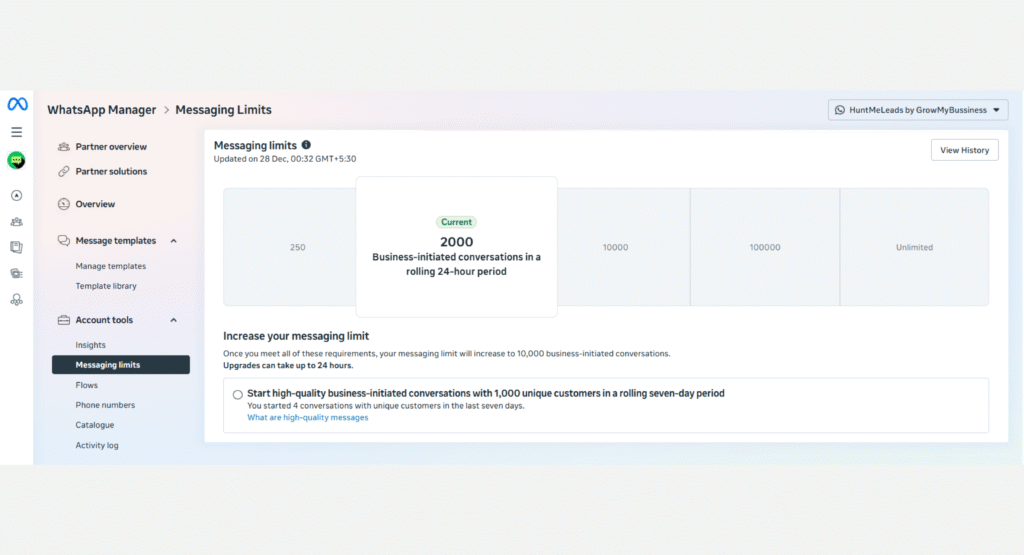
When using WhatsApp Business API with LandinChat, Meta places limits on how many new conversations your business can start within a 24-hour period.
This limit controls how many new customers you can message per day for:
- Marketing
- Utility
- Authentication
- Service (business-initiated)
These limits are enforced by Meta, not LandinChat.
Default Messaging Limit #
When you start:
- Your WhatsApp number is typically limited to 2,000 new conversations per day
As your account builds trust and activity, Meta allows this limit to increase automatically.
Messaging Limit Tiers #
Your WhatsApp messaging limit can scale through the following levels:
- 2,000 conversations / day
- 10,000 conversations / day
- 100,000 conversations / day
- Unlimited conversations
You do not manually request most upgrades.
Meta increases limits automatically when conditions are met.
How Automatic Scaling Works #
Meta reviews your account continuously.
Your messaging limit increases only if all conditions below are met:
- ✅ Your phone number is connected and active
- ✅ Your quality rating is Medium or High
- ✅ You actively use your current limit
- At least 50% usage over the last 7 days
If all conditions are satisfied, Meta upgrades your limit to the next tier, usually within 24 hours.
When Limits Can Decrease #
If your quality rating is:
- Flagged for the last 7 days
Meta may:
- Reduce your messaging limit
- Pause scaling completely
This happens automatically.
Examples of Automatic Scaling #
Example 1: Faster Scaling #
- Day 1: 500 conversations opened
- Day 2: 500 conversations opened
- Day 3: Limit increases to 10,000/day
Example 2: Slower Scaling #
- Day 1: 100 conversations
- Day 2: 200 conversations
- Day 3: 200 conversations
- Day 4: 300 conversations
- Day 5: Limit increases to 10,000/day
Usage consistency matters more than speed.
What Happens If You Hit the Daily Limit? #
If you reach your daily limit:
- You cannot start new conversations that day
- Existing conversations can continue
- New conversations can start again once:
- The 24-hour window resets, or
- Active conversations expire
No penalties for hitting the limit.
How to Check Your Messaging Limit #
You can check limits inside WhatsApp Manager.
Before 2,000 Conversations #
Go to:
- Overview → Limits
You’ll see:
- Current limit
- Suggestions to increase it
After 2,000 Conversations #
Go to:
- Account tools → Insights
Here you’ll see:
- Current messaging tier
- Auto-scaling updates
- Performance indicators
Messaging Quality: Why It Matters #
Meta tracks how users react to your messages.
Your quality rating is based on:
- Blocks
- Reports
- Negative feedback
- Engagement behavior
Ratings are calculated based on the last 7 days.
You can view your rating here:
- WhatsApp Manager → Account tools → Phone numbers
How to Maintain a High Quality Rating #
To keep your limits increasing:
- Message only opted-in users
- Send relevant and useful content
- Personalize messages when possible
- Avoid sending too frequently
- Follow WhatsApp Messaging Policies strictly
High volume + poor quality = limits go down.
Key Takeaway #
- Messaging limits are controlled by Meta
- Scaling is automatic, not manual
- Quality matters more than quantity
- LandinChat does not restrict your limits
If you want higher limits, earn them.
Frequently Asked Questions (FAQs) #
1. Who sets WhatsApp messaging limits? #
Meta sets and controls all messaging limits.
LandinChat does not decide or cap limits.
2. What does “2,000 messages per day” actually mean? #
It means 2,000 new conversations, not individual messages.
You can send unlimited messages within each conversation window.
3. Can I request a higher messaging limit manually? #
Usually no.
Meta upgrades limits automatically based on performance and quality.
4. Why did my messaging limit decrease? #
Most likely due to:
- Low quality rating
- High number of blocks or reports
- Poor engagement
5. Does business verification affect messaging limits? #
Yes.
Verified businesses scale faster and face fewer restrictions.
6. Does LandinChatcharge extra for higher limits? #
No.
LandinChat charges 0% markup regardless of your messaging tier.
7. Can I send messages after hitting my limit? #
You can:
- Continue existing conversations
You cannot: - Start new conversations until reset
8. How often does Meta review messaging limits? #
Continuously.
Reviews are based on rolling 7-day activity.
9. Where can I see my quality rating? #
Inside WhatsApp Manager → Account tools → Phone numbers
10. What is the fastest way to increase limits? #
- Send to opted-in users only
- Maintain Medium or High quality
- Use at least 50% of your current limit consistently
No shortcuts. No hacks.