
(For LandinChat – WhatsApp Business API Live Chat)
When multiple agents handle WhatsApp conversations, poor handovers confuse customers and slow resolution.
Join Chat and Signature Message in LandinChat Live Chat exist to solve exactly that — clean agent handover with zero context loss.
This guide explains what these features do, when to use them, and how to configure them properly.
What Is LandinChat Live Chat? #
LandinChat Live Chat is a shared team inbox that allows multiple agents to:
- Send and receive WhatsApp messages
- View conversation history
- Add labels and notes
- Take over chats when needed
It’s designed for sales, support, and operations teams, not solo users.
What Is the “Join Chat” Feature? #
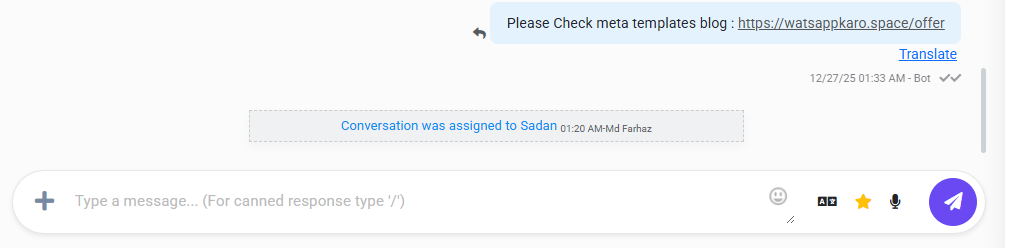
Join Chat allows a team member to take control of an ongoing WhatsApp conversation.
How it works:
- An agent clicks Join Chat
- The chat reloads
- The new agent becomes the active responder
- The customer stays in the same conversation (no restart)
No messages are lost. No awkward pauses.
When Should You Use Join Chat? #
Use Join Chat when:
- A customer asks to speak with another agent
- The issue requires a specialist (billing, tech, sales)
- A conversation escalates and needs senior support
- Shift change or workload redistribution is required
This is handover, not takeover.
What Is a Signature Message? #
A Signature Message is an automatic intro message sent when a new agent joins a chat.
Its only purpose:
Tell the customer who is now handling the conversation
This prevents confusion and keeps communication transparent.
Example Signature Message #
Hi, I’m {{Agent Name}} from the LandinChat support team. I’ll be assisting you further.
No guessing. No “Who are you?” questions.
How Signature Messages Work with Join Chat #
- Agent clicks Join Chat
- Agent enables Send Signature Message
- Customer instantly receives the intro message
- Conversation continues normally
Signature messages are optional—but skipping them looks unprofessional.
How to Customize Signature Messages #
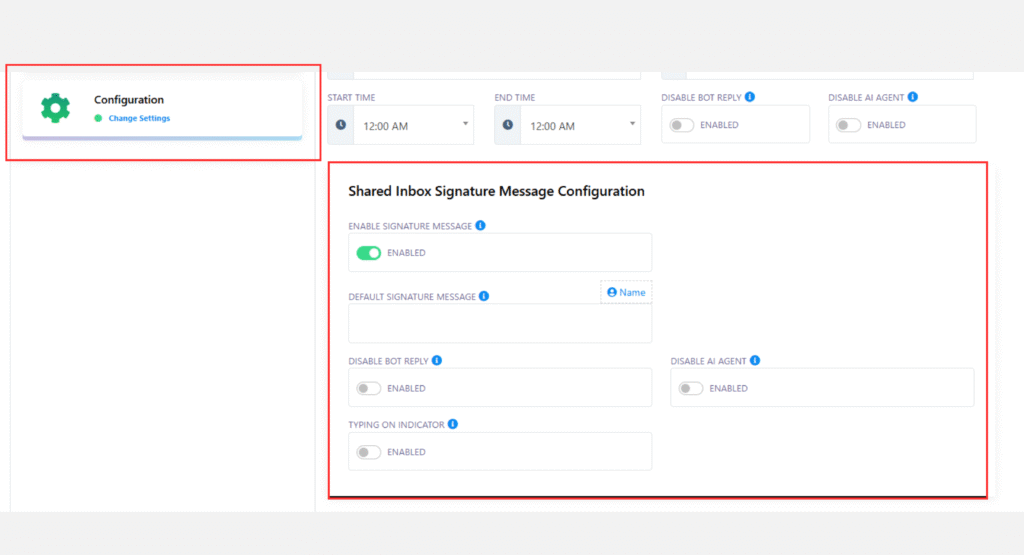
You can configure signature messages globally.
Steps:
- Go to Settings → Configuration
- Locate Signature Message
- Edit the message content
- Insert agent name variable if needed
Example:Hello, I’m #User-Name#, from the LandinChat sales team. - Save changes
Changes apply to all future handovers.
Best Practices for Agent Handover #
- Always use a signature message when switching agents
- Keep the message short and professional
- Avoid emojis or casual language
- Ensure agents read chat history before replying
Bad handovers damage trust faster than slow replies.
Key Takeaway #
- Join Chat = internal agent handover
- Signature Message = customer-facing clarity
- Together, they prevent confusion and improve resolution speed
If you run team-based WhatsApp support, these features are not optional—they’re essential.
Frequently Asked Questions (FAQs) #
1. Does Join Chat start a new WhatsApp conversation? #
No.
The same conversation continues without interruption.
2. Will the customer know a new agent joined? #
Only if a Signature Message is enabled.
3. Can multiple agents join the same chat? #
Only one agent can actively control the chat at a time.
4. Is Signature Message mandatory? #
No, but skipping it reduces transparency and trust.
5. Can I personalize signature messages per agent? #
No.
It’s a global message with dynamic agent name insertion.
6. Does Join Chat affect the 24-hour window? #
No.
It does not reset or impact WhatsApp’s 24-hour rule.
7. Can I disable signature messages? #
Yes.
But it’s not recommended for support or sales teams.
8. Is chat history visible to the new agent? #
Yes.
Full conversation history is retained.
9. Does this work with WhatsApp Business App? #
No.
This is exclusive to WhatsApp Business API.
10. Who should use Join Chat? #
Any team handling:
- Customer support
- Sales inquiries
- Account management
Solo users won’t benefit much.