
(For LandinChat – WhatsApp Business API)
If you want to change the phone number connected to LandinChat, you must delete the existing number first and then add a new one from scratch.
There is no direct “replace number” option in WhatsApp Business API.
⚠️ Important Before You Delete a Phone Number #
Deleting a phone number will permanently:
- ❌ Delete all message templates
- ❌ Reset the phone number’s messaging limits
- ❌ Remove contacts and notifications linked to that number in LandinChat
- ❌ Disconnect the number from WhatsApp Business API
This action cannot be undone.
Proceed only if you are sure.
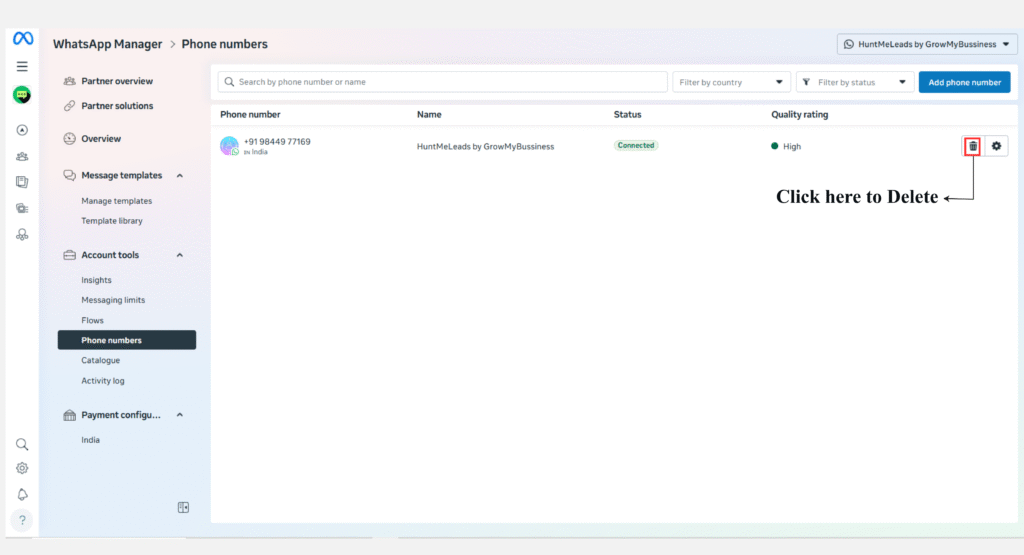
Step 1: Delete the Phone Number in WhatsApp Manager #
- Log in to Meta Business Manager
- Open WhatsApp Manager
- Go to Account tools → Phone numbers
- Select the correct Meta Business Account
- Locate the phone number you want to delete
- Click the trash / delete icon next to the number
- Confirm deletion
The phone number will be removed from WhatsApp Business API
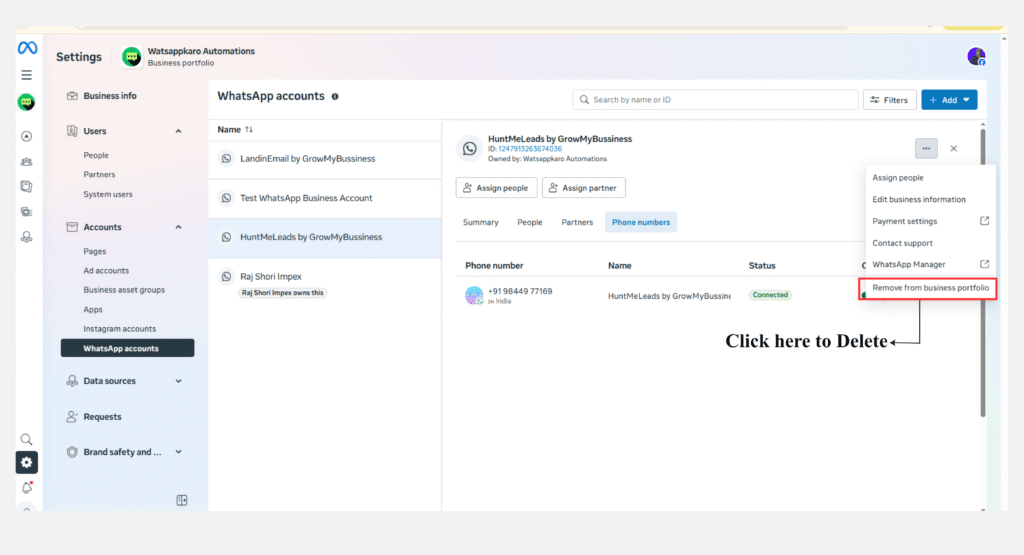
Step 2: Delete the Associated WhatsApp Business Account (If Required) #
In some cases, Meta requires you to delete the WhatsApp Business Account (WABA) linked to the phone number.
- In WhatsApp Manager, go to WhatsApp Business Accounts
- Find the WABA associated with the deleted phone number
- Delete the WhatsApp Business Account
⚠️ This deletes all assets under that WABA.
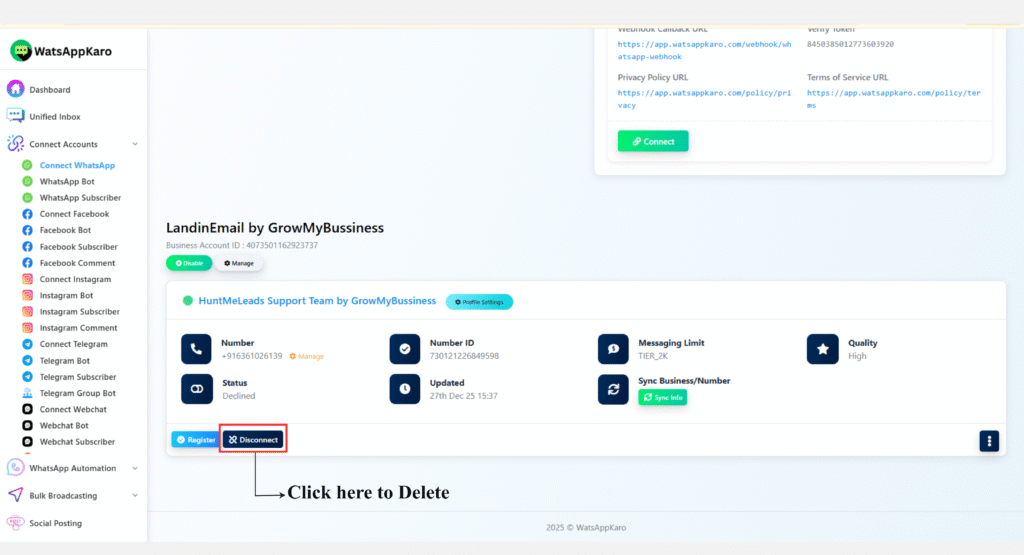
Step 3: Disconnect the Number from LandinChat #
- Log in to your LandinChatdashboard
- Go to Connect Account
- Scroll to see all connected phone numbers
- Find the deleted number
- Click Disconnect
This removes the number from LandinChat completely.
Step 4: Add a New Phone Number #
After disconnection:
- Follow the standard onboarding process
- Add and verify a new phone number
👉 Refer to: How to Connect Your Phone Number with LandinChat
Final Reminder #
Deleting a phone number is a destructive action:
- Templates are lost
- Messaging limits reset
- History cannot be recovered
If the number is business-critical, reconsider before deleting.
Frequently Asked Questions (FAQs) #
1. Can I change my WhatsApp API phone number without deleting the old one? #
No.
WhatsApp requires you to delete the existing number first.
2. Will my message templates be saved? #
No.
All templates linked to the number are permanently deleted.
3. Will my messaging limits carry over to the new number? #
No.
Messaging limits reset when a new number is added.
4. Do I need to delete the WhatsApp Business Account every time? #
Not always.
Only if Meta requires it or the number is locked to that WABA.
5. Does deleting the number affect my Meta Business Manager? #
No.
Only the phone number and related WhatsApp assets are removed.
6. Will deleting the number stop active conversations? #
Yes.
All conversations linked to that number will stop immediately.
7. Can I reuse the same phone number later? #
Possibly, but:
- It must be fully released by Meta
- Messaging limits will reset
- Previous data will not return
8. Can LandinChat recover deleted numbers or templates? #
No.
Deletion is controlled by Meta and cannot be reversed.
9. Should I contact support before deleting? #
Yes, if:
- The number is business-critical
- You’re unsure about the consequences
10. What is the safest way to switch numbers? #
- Use a new phone number
- Keep the old number active until the new one is ready