
Custom Fields and Labels are the foundation of everything in LandinChat — broadcasts, sequences, personalization, automation, and reporting.
If you don’t set these correctly before importing contacts, you will create data chaos that’s painful to fix later.
This guide explains what they are, why they matter, and how to use them properly.
What Are Custom Fields? #
Custom Fields store additional subscriber data beyond phone number and name.
Examples:
- Company Name
- Website URL
- City
- Lead Source
- Plan Type
- Last Purchase Date
Custom fields allow:
- Message personalization (
Hi {{name}}, welcome to {{company}}) - Conditional automation
- Better segmentation
- Cleaner CRM-style data
Phone Number is always default. Everything else must be created manually.
When You Should Create Custom Fields #
Create custom fields before:
- Importing CSV files
- Importing from Google Sheets
- Running broadcasts with variables
- Building chatbot input flows
- Setting up sequences
If you import first and create fields later, data mapping will fail.
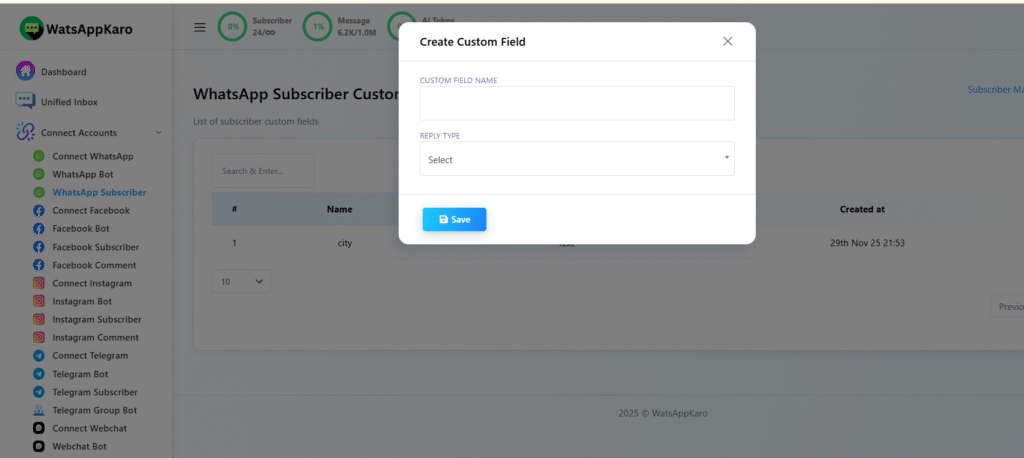
How to Create Custom Fields in LandinChat #
Step-by-Step #
- Go to Subscriber Manager
- Click Manage Custom Fields
- Click Add Field
- Enter the field name
Example:company_name - Select the correct Reply Type:
- Text → Name, Company, City
- Email → Email address
- URL → Website
- Date → Appointment date
- Click Save
- Refresh the page to confirm it appears
⚠️ Important:
Reply type must match the data.
Wrong reply type = broken imports + failed variables.
Best Practices for Custom Fields #
- Use clear, lowercase names
- Match CSV column names closely
- Don’t create duplicate fields for the same data
- Keep fields minimal—only store what you actually use
More fields ≠ better system. Clean data wins.
What Are Labels? #
Labels are tags used to categorize subscribers.
They do not store data — they store status or context.
Examples:
- New Lead
- Paid Customer
- Webinar Attendee
- Demo Booked
- Follow-Up Required
Labels are used for:
- Targeted broadcasts
- Sequence triggers
- Filtering subscribers
- Manual team workflows
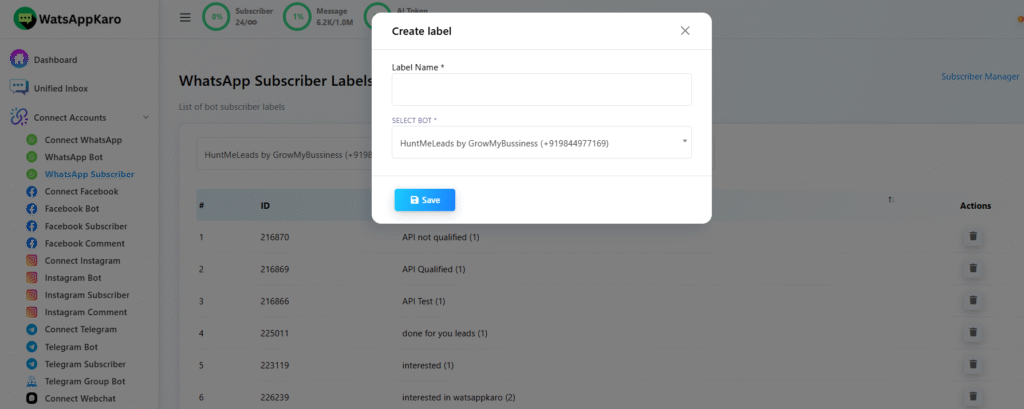
How to Create Labels in LandinChat #
Step-by-Step #
- Go to Subscriber Manager
- Click Manage Labels
- Click Create Label
- Enter a label name
Example:paid_customer - Click Save
Labels can be:
- Assigned during import
- Applied by chatbots
- Added manually
- Used in broadcasts and sequences
How Labels Should Be Used (Correctly) #
Use labels to answer:
- Who is this user?
- What stage are they in?
- What should happen next?
Examples:
- Import CSV → Apply
cold_leads - User clicks “Buy Now” → Apply
interested - Payment success → Apply
paid_customer - Support resolved → Apply
resolved
Labels drive automation logic. Use them deliberately.
Common Mistakes You Must Avoid #
- Creating custom fields after importing contacts
- Using wrong reply types
- Creating too many unnecessary fields
- Not assigning labels during import
- Using labels as data storage (wrong use)
These mistakes compound fast.
Key Takeaway #
If Custom Fields define what you know about a user,
Labels define what you do with that user.
Set them up once, properly, and everything else in LandinChat becomes easier, faster, and scalable.
Frequently Asked Questions (FAQs) #
1. Can I edit a custom field after creating it? #
You can edit the name, but changing the reply type is not recommended once data exists.
2. Can I delete a custom field? #
Yes, but deleting it removes all stored data permanently.
3. How many custom fields can I create? #
There’s no strict limit, but fewer, well-defined fields are better.
4. Can labels be applied automatically? #
Yes. Chatbots, sequences, and imports can apply labels automatically.
5. Can one subscriber have multiple labels? #
Yes. A subscriber can have unlimited labels.
6. Do labels affect WhatsApp pricing? #
No. Labels are internal and have no impact on WhatsApp costs.
7. Should CSV column names match custom field names exactly? #
They don’t have to, but matching names reduces mapping errors.
8. Can I use custom fields inside message templates? #
Yes. Custom fields can be used as variables in approved templates.
9. What happens if I forget to create a custom field before import? #
That column’s data will be ignored or unmapped.
10. What should I set up first: labels or custom fields? #
Custom fields first, labels second, import last.