
LandinChat’s AI Assistant allows you to automate customer conversations by training the bot on FAQs, website URLs, and files. Instead of hard-coded replies, the AI understands context and responds intelligently—while still allowing human handover when required.
This guide explains how to train the AI correctly, configure its behavior, and avoid common mistakes that break AI bots.
What the AI Assistant Actually Does (Reality Check) #
The AI Assistant is designed to:
- Answer repetitive customer questions
- Reduce live chat workload
- Act as first-level support, not a human replacement
It does NOT:
- Magically know your business
- Replace proper chatbot flows
- Fix unclear or badly written source data
AI quality = training quality. Garbage in → garbage out.
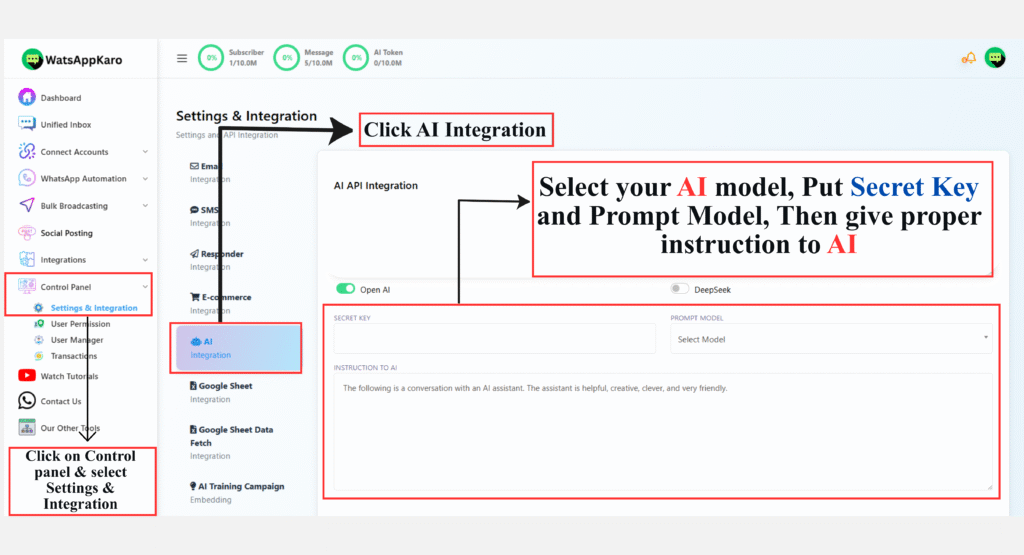
Step 1: Create an AI Training Campaign #
This is the brain of your AI.
Steps #
- Go to Dashboard → Settings → AI Training Campaign
- Click Create
- Enter:
- Campaign Name (e.g., “LandinChat Support AI”)
- Prompt Message (this defines tone & role)
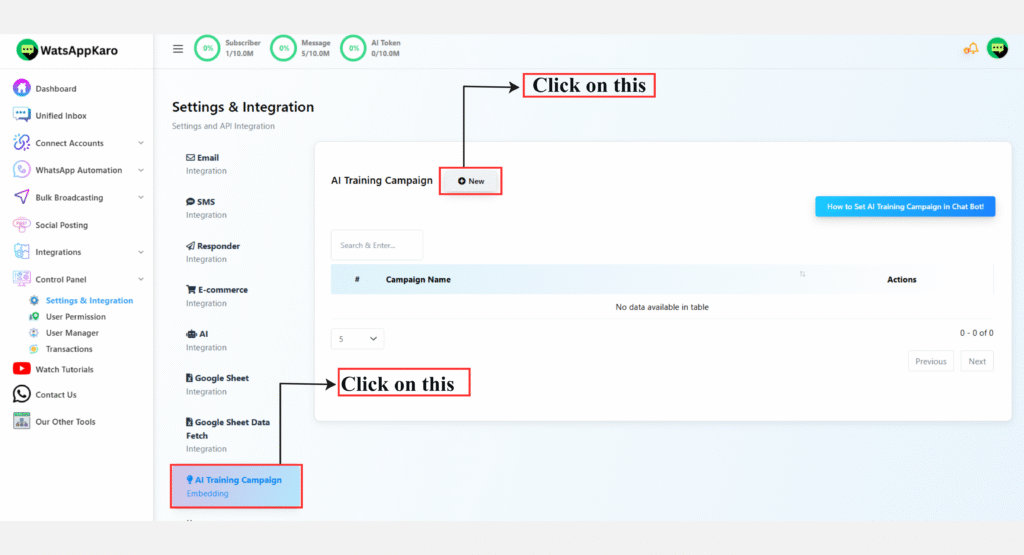
Prompt Best Practice (Important) #
Don’t write vague prompts like:
“You are a helpful assistant”
Instead, be explicit:
“You are a customer support assistant for LandinChat. Answer clearly, briefly, and only based on trained data. If unsure, ask the user to contact support.”
Click Save.
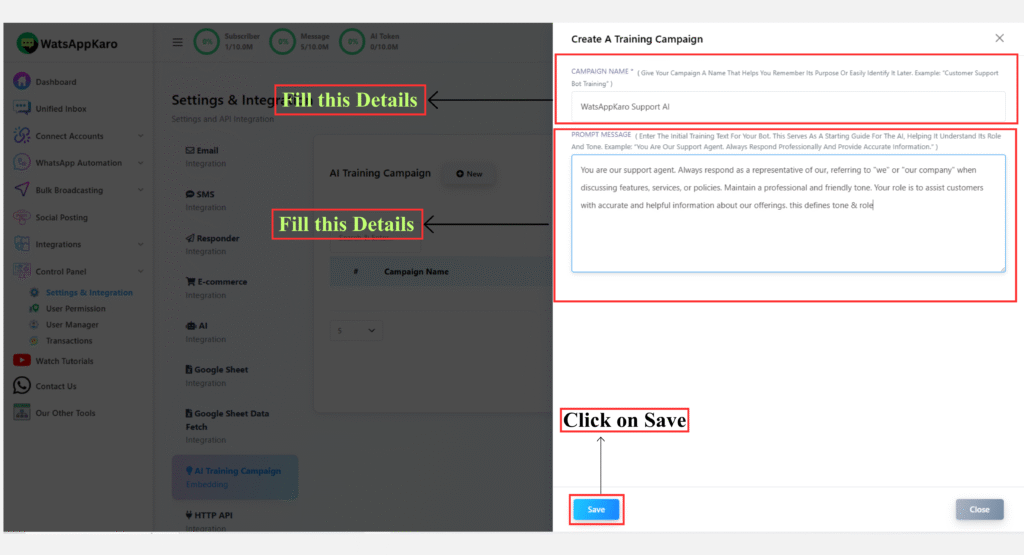
Step 2: Train the AI Using FAQs (Most Important) #
FAQs should be your primary training source.
Why FAQs Matter #
- Structured
- Low token usage
- Predictable answers
- Easier to maintain
How to Add FAQs #
- Click ➕ (Plus) inside the campaign
- Choose FAQs
- Add Q&A pairs in clean format
- Save
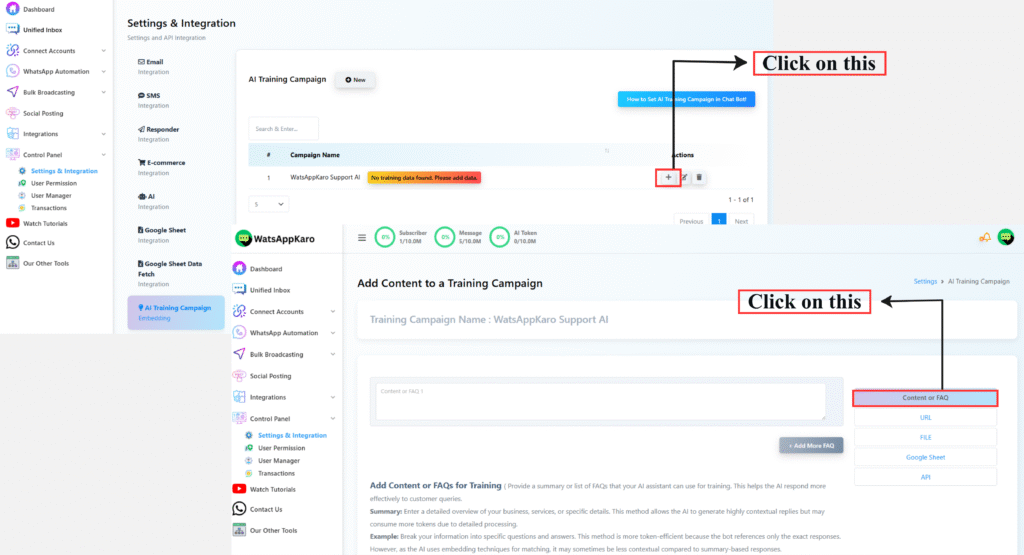
FAQ vs Summary (Be Smart) #
- FAQs → cheaper, faster, safer (recommended)
- Summary → richer answers, higher cost
Use summaries only when FAQs aren’t sufficient.
Step 3: Train the AI Using a Website URL #
This pulls data directly from your website.
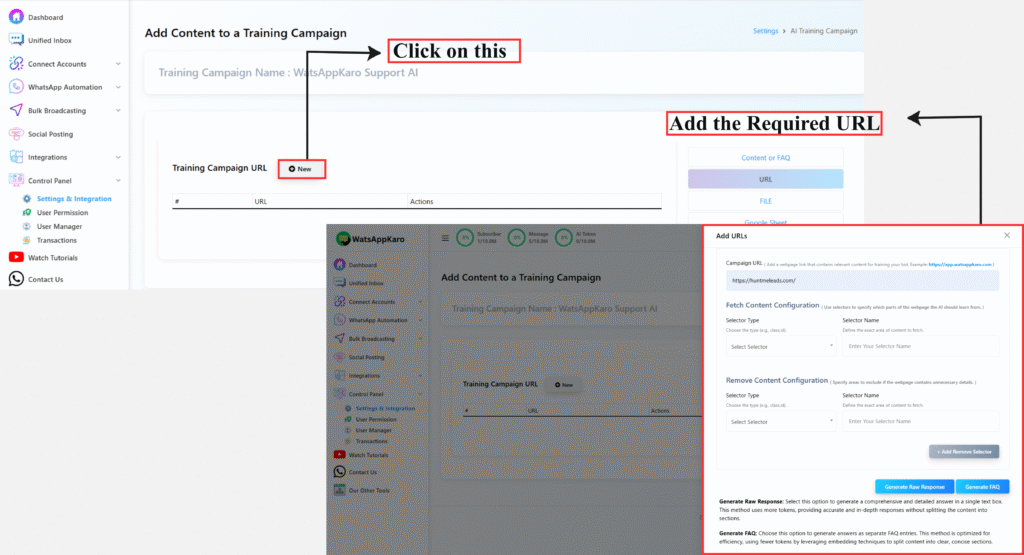
Steps #
- Click New → URL Training
- Enter the webpage URL
- Choose Selector Type:
ClassorID(based on page structure)
- Remove junk sections:
- Headers
- Footers
- Ads
- Navigation
- Choose processing mode:
- Generate FAQ (recommended)
- Generate Raw Response (only if needed)
- Save
⚠️ If your page is messy, your AI answers will be messy.
Clean content = better AI.
Step 4: Train the AI Using Files (PDF, DOC, TXT) #
Use this for:
- Policy documents
- Product manuals
- Pricing PDFs
- Internal SOPs
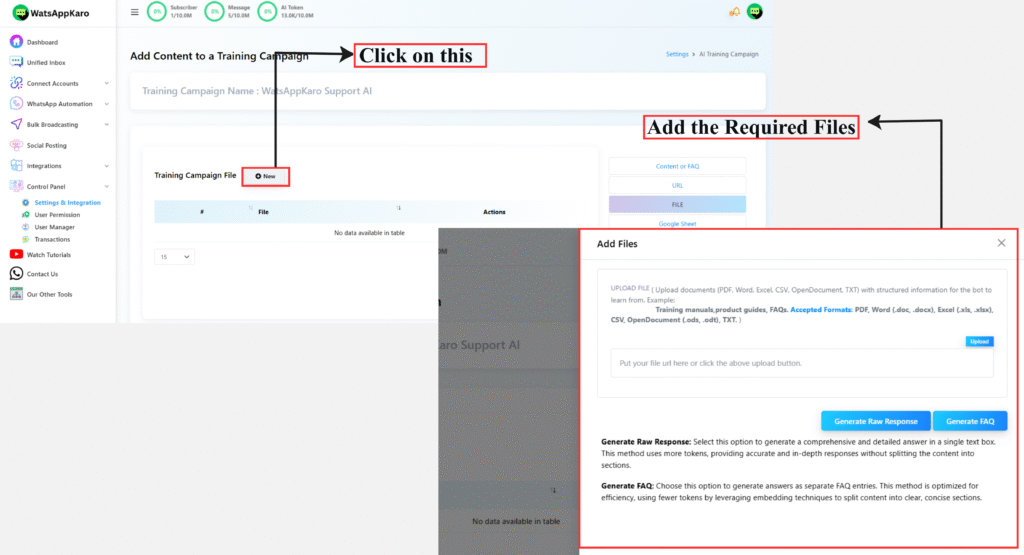
Steps #
- Go to File Settings → New
- Upload file (PDF / DOC / TXT)
- Choose mode:
- Generate FAQ → structured, efficient (best)
- Generate Raw Response → long answers, costly
- Save
Rule of thumb:
If humans struggle to read the file, AI will struggle more.
Step 5: Configure AI Chatbot Behavior #
Training alone does nothing unless AI is correctly activated.
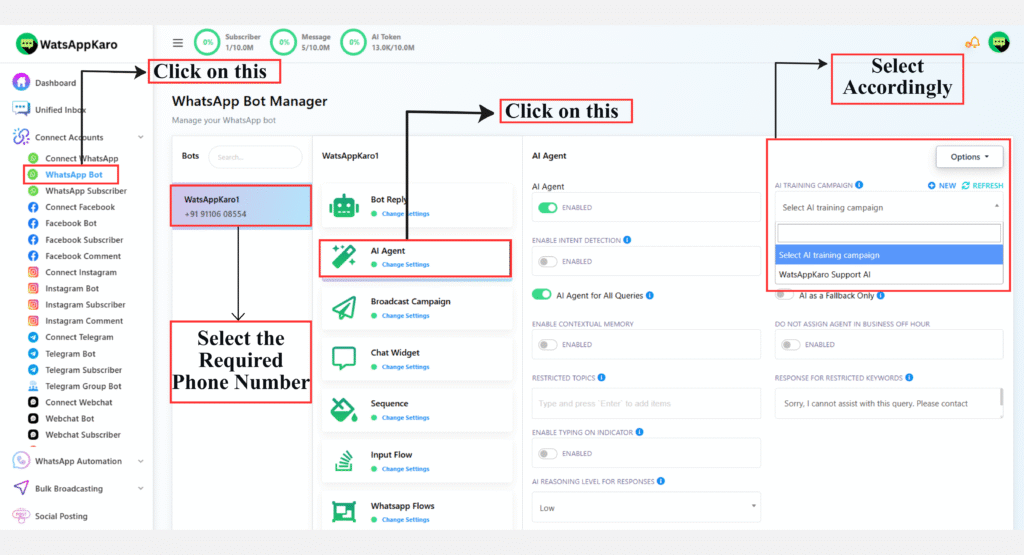
Enable AI Assistant #
- Go to Bot Manager
- Toggle Enable AI Assistant
- Select your AI Campaign
Choose AI Response Mode #
You have two options:
Option 1: AI for All Queries #
- AI replies to everything
- Risky if training is weak
- Only use for mature setups
Option 2: AI as Fallback (Recommended) #
- Rules & bots first
- AI replies only when no match is found
- Safer and more controlled
Configure “No Match” Reply #
This is mandatory.
- Go to Bot Manager → Action Buttons → No Match
- Select AI Reply
- Link your AI Campaign
- Enable No Match Reply
- Save
Without this, AI won’t trigger reliably.
Step 6: Testing & Optimization (Don’t Skip This) #
Before going live:
- Ask real customer questions
- Try incomplete or badly worded queries
- Check for hallucinations or wrong answers
Fix Issues By: #
- Adding missing FAQs
- Removing irrelevant URL sections
- Rewriting unclear documents
- Tightening prompt instructions
AI training is iterative, not one-time.
AI + Shared Team Inbox (Where AI Actually Shines) #
AI should not trap users.
LandinChat allows AI → Human escalation using Shared Team Inbox.
How It Works #
- AI detects phrases like:
- “talk to human”
- “agent”
- “support executive”
- Conversation is automatically assigned to a team member
- Human takes over instantly
Why This Matters #
- Prevents user frustration
- Maintains trust
- Keeps WhatsApp quality rating safe
AI handles volume. Humans handle complexity.
Why Use LandinChat AI Assistant? #
- Multi-channel support (WhatsApp, web chat, Instagram, etc.)
- 24/7 automated responses
- Reduces support costs
- Faster first response time
- Smart human escalation
- Scales without hiring more agents
But again:
AI is an assistant, not a shortcut.
FAQs #
1. Can the AI answer questions it’s not trained on? #
No. It only responds based on trained FAQs, URLs, and files.
2. What’s the best training method? #
FAQs first, URLs second, files last.
3. Is AI expensive to run? #
Depends on token usage. FAQs are cheapest.
4. Can AI replace live chat agents? #
No. It reduces workload, not headcount.
5. What happens if AI gives a wrong answer? #
That’s on poor training. Fix the source, not the AI.
6. Can I update training later? #
Yes. You should update it regularly.
7. Should I enable AI for all queries? #
Only after heavy testing. Start with fallback mode.
8. Does AI affect WhatsApp quality rating? #
Indirectly. Bad answers → user blocks → rating drops.
9. Can AI assign chats to agents automatically? #
Yes, using AI-based escalation rules.
10. Is this useful for sales or only support? #
Both—but support works better than sales for AI.