
(For LandinChat – WhatsApp Business API)
If you’re using WhatsApp Business API seriously, the Live Chat Dashboard is where most of your daily work happens.
This guide explains how to manage customer conversations end-to-end using LandinChats Live Chat—covering chat handling, organization, collaboration, and compliance with WhatsApp rules.
Prerequisites #
Before using Live Chat effectively, ensure:
- Your WhatsApp Business API number is connected to LandinChat
- You have access to the Live Chat Dashboard
- Labels and custom fields are already created (recommended for scale)
- Agents are added if you’re running a team
Without these, Live Chat becomes chaotic fast.
What Is LandinChat Live Chat? #
LandinChat Live Chat is a shared team inbox built specifically for WhatsApp Business API.
It’s divided into three core sections:
- Subscriber List – Find and organize customers
- Chat Window – Communicate and respond
- Chat Actions Panel – Manage workflows, agents, and data
Understanding these three areas is key to fast, clean support.
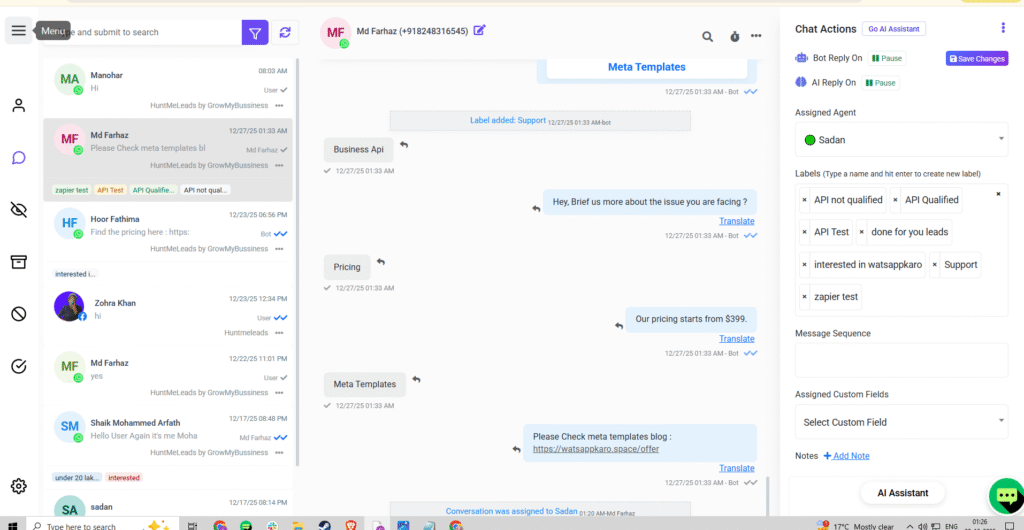
1️⃣ Subscriber List Section #
This section shows all WhatsApp conversations linked to your number.
1. Search for a Subscriber #
Use the search bar to instantly find users by:
- Name
- Phone number
This is the fastest way to locate a specific conversation.
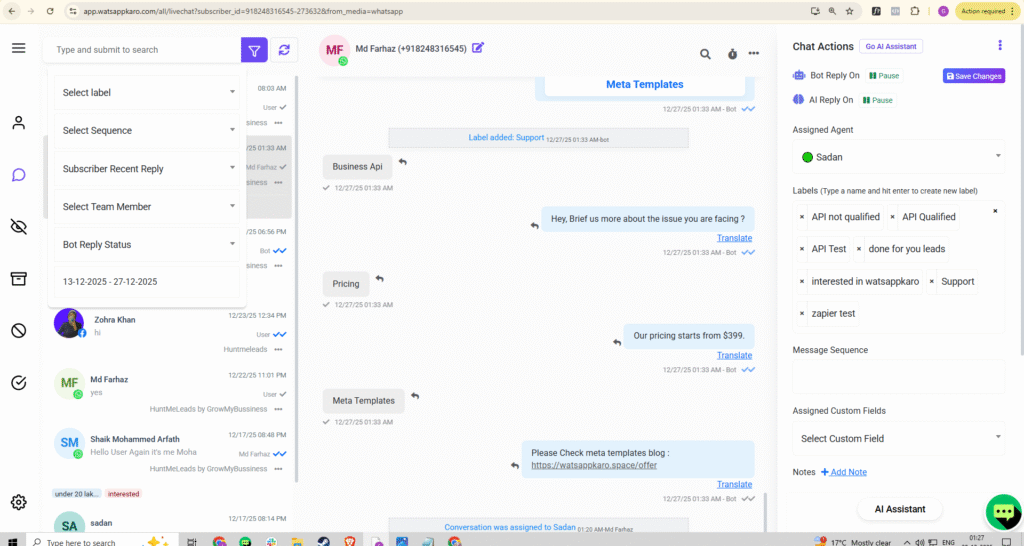
2. Advanced Search with Filters #
Filters help when you’re handling volume.
You can filter by:
- Labels
View only users tagged with specific labels (e.g. New Lead, Paid User) - Sequences
Filter users currently inside automation or message sequences - Order By Options
- Subscriber Recent Reply → Users who replied most recently
- Recent Communication → Users you replied to most recently
Filters prevent missed messages when traffic increases.
3. Manage Chats (Views) #
You can switch between multiple chat views:
- Mine – Chats assigned to you
- All Chats – Every conversation
- Unread – Messages you haven’t opened
- Archived – Old or paused conversations
- Blocked – Spam or abusive users
- Resolved – Completed support cases
This keeps work structured instead of reactive.
2️⃣ Chat Window Section #
This is where actual conversations happen.
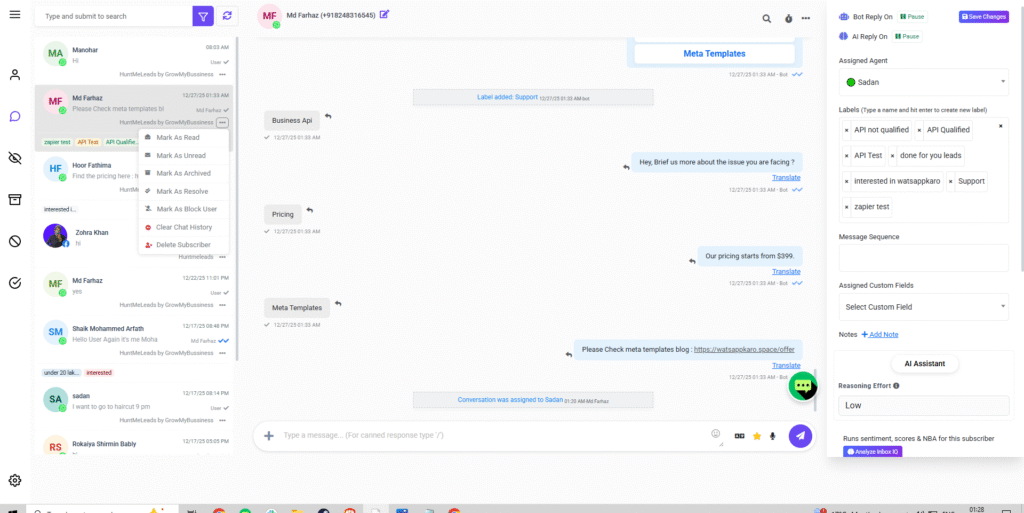
1. Mark Chat (Unread or Archive) #
- Mark chats Unread to revisit later
- Archive chats once handled
Never rely on memory—use status.
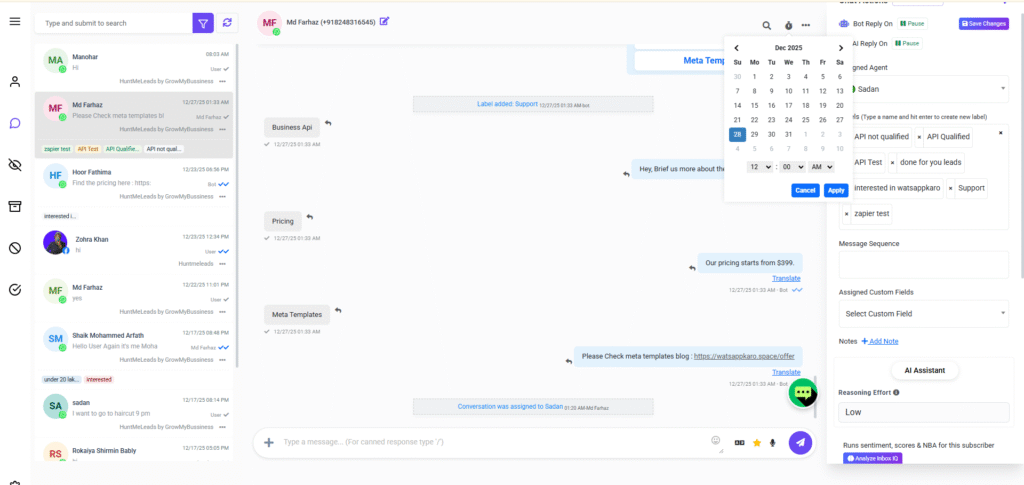
2. Set a Follow-Up Reminder #
Use follow-ups when you can’t respond immediately.
Steps:
- Click Follow-Up
- Set date and time
- Get reminded automatically
This prevents dropped conversations.
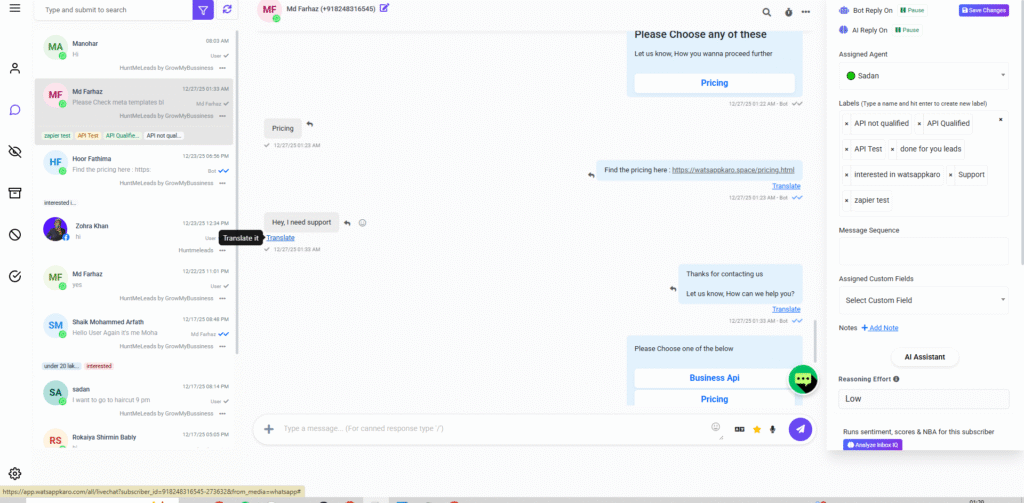
3. Translate Messages #
Click Translate below any message to convert it into your preferred language.
Useful when dealing with:
- International users
- Regional language messages
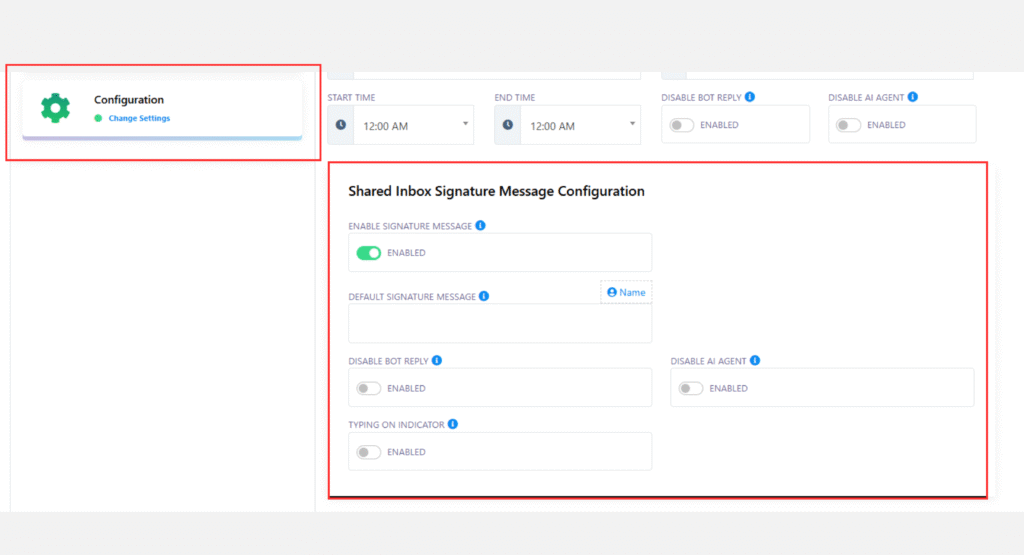
4. Use Signature Messages #
Before joining a chat, enable Send Signature Message so customers know who is assisting them.
This improves trust during agent handovers.
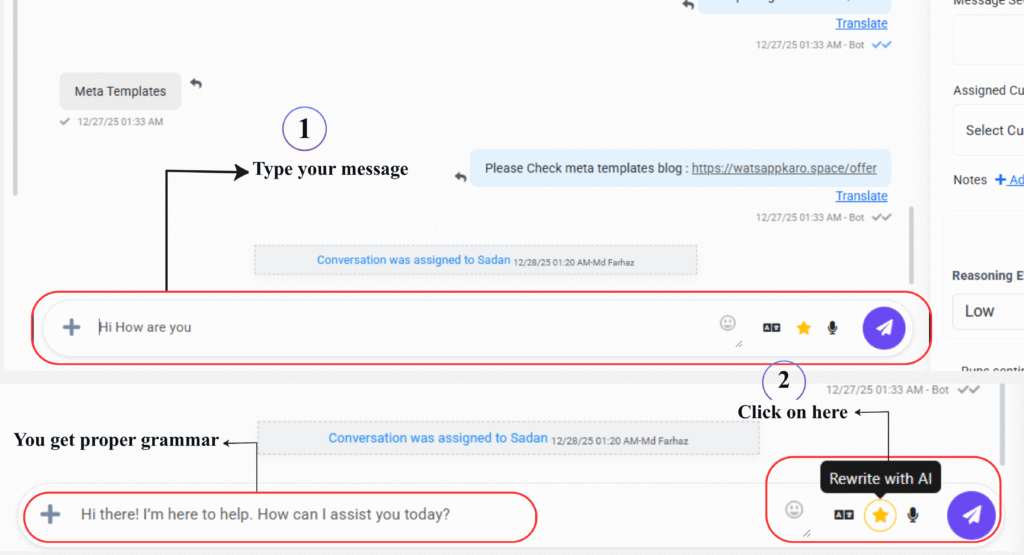
5. Rewrite Messages with AI #
Draft a reply → click Rewrite with AI to:
- Fix grammar
- Improve clarity
- Adjust tone
Helpful, but don’t overuse robotic replies.
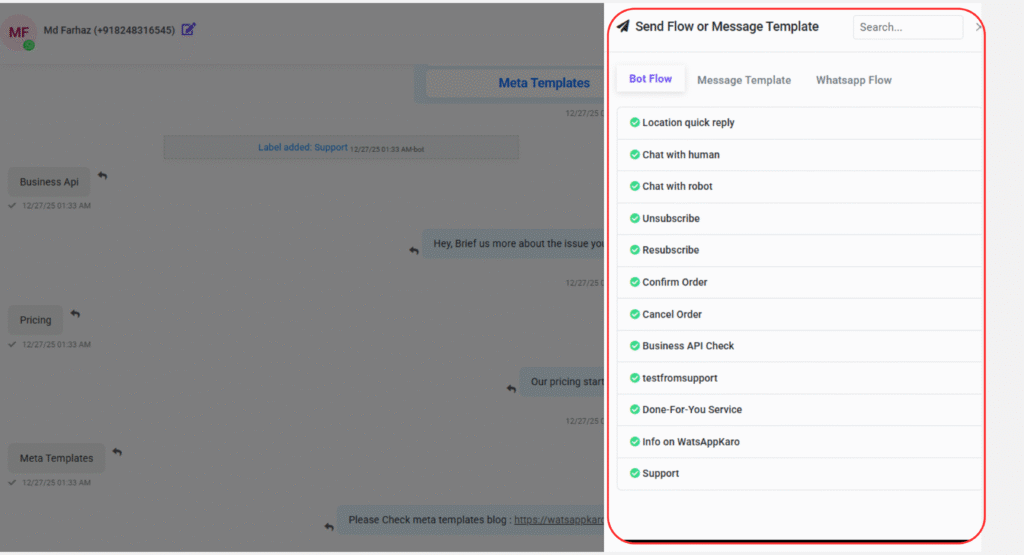
6. Send Flows or Message Templates #
You can send:
- Approved message templates
- Pre-built bot flows
Steps:
- Click Message Template
- Select template or flow
- Fill variables
- Send
This is required outside the 24-hour window.
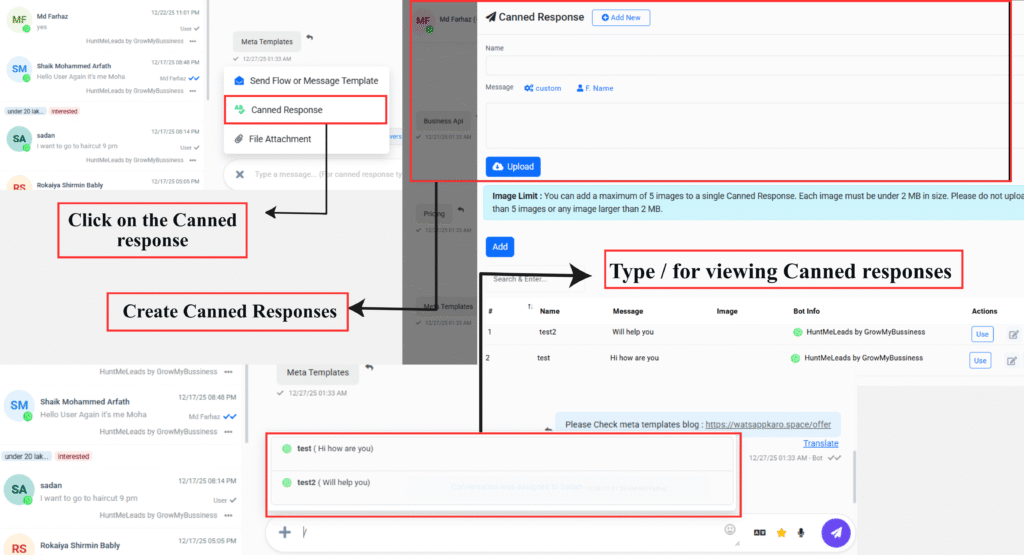
7. Use Canned Responses #
Canned responses are saved replies for common questions.
Steps:
- Click Canned Response
- Select or create response
- Insert instantly
This saves time without breaking consistency.
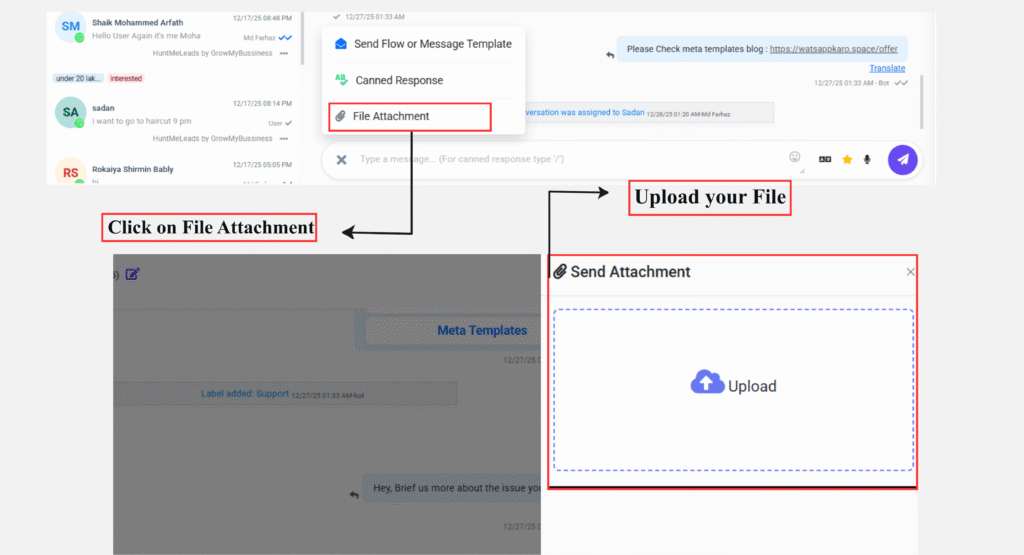
8. Share Attachments #
You can send:
- Images
- Documents
- Multiple files at once
Methods:
- Drag & drop files into chat
- Or use attachment button
Add captions if needed before sending.
9. Audio & Video Embedded Playback #
Audio and video files sent by customers or agents can be:
- Played directly inside chat
- Viewed without downloading
This speeds up support.
3️⃣ Chat Actions Section #
This panel controls logic, automation, and collaboration.
1. Use the Action Button #
From here you can:
- Subscribe / Unsubscribe users
- Pause / Resume Bot Replies
- Reset User Input Flows
- Clear Chat History (internal only)
- Leave Chat after resolution
This lets humans take control when automation isn’t enough.
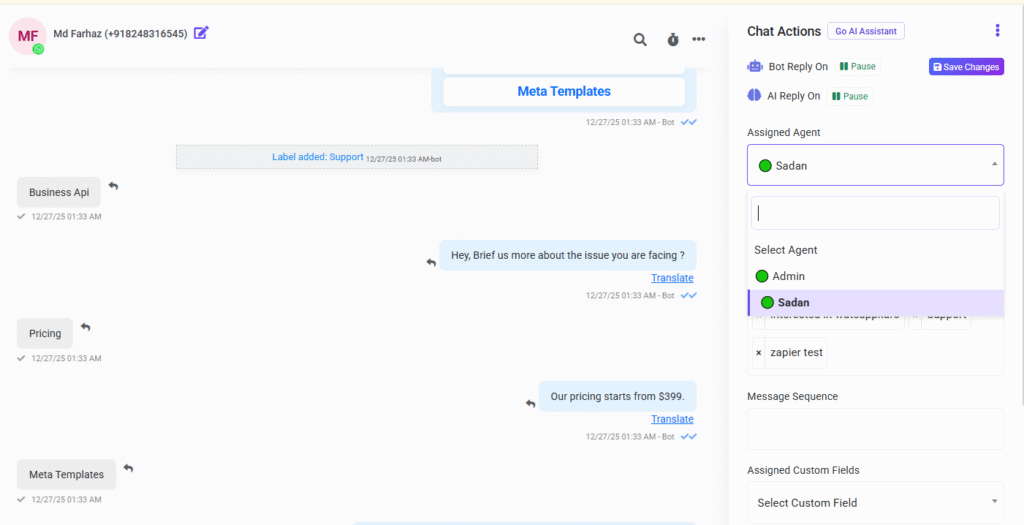
2. Assign an Agent #
Assign chats to specific team members.
Steps:
- Click Assign Agent
- Select agent
- Save
The agent receives an instant notification.
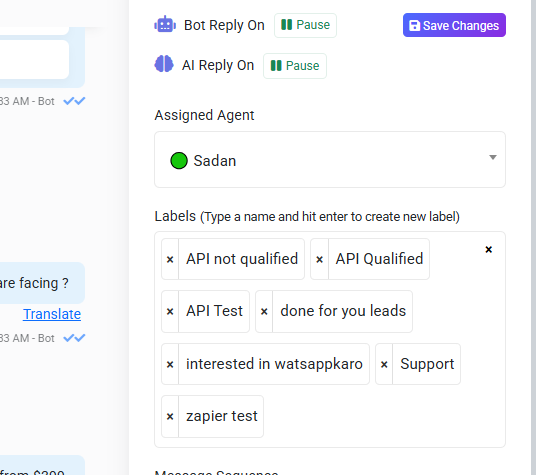
3. Add Labels #
Labels help categorize conversations.
Examples:
- Lead
- Support
- Billing
- VIP
You can apply multiple labels per user.
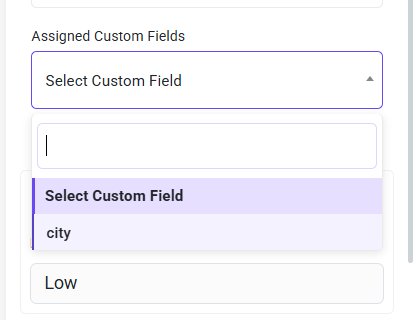
4. Use Custom Fields #
Custom fields store structured customer data.
Steps:
- Open Custom Fields
- Select field (e.g. Address, Order ID)
- Enter value
This data can later be used for automation or broadcasts.
5. Add Internal Notes #
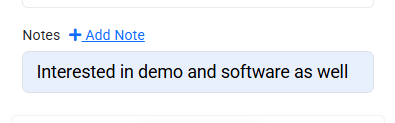
Notes are:
- Visible only to your team
- Not sent to the customer
Use them for:
- Context
- Escalations
- Important reminders
6. Check the 24-Hour Window #
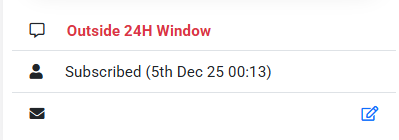
A live countdown shows how much time remains before:
- Free-form replies are blocked
- Templates become mandatory
Ignoring this causes message failures.
Key Takeaway #
Live Chat isn’t just replying—it’s systematic conversation management.
- Subscriber List = control
- Chat Window = communication
- Actions Panel = scale
If you don’t use structure, WhatsApp volume will break you.
Frequently Asked Questions (FAQs) #
1. What if messages fail to send? #
Check:
- Internet connection
- Whether the 24-hour window has expired
2. Can I reassign chats to other agents? #
Yes.
Use Assign Agent anytime.
3. Does clearing chat history affect the customer? #
No.
It clears only your internal view.
4. Can bots and agents work together? #
Yes.
Pause bot replies when needed and resume later.
5. Are canned responses editable? #
Yes.
You can create and update them anytime.
6. Does Live Chat reset the 24-hour window? #
No.
Only customer messages reset the window.
7. Can multiple agents reply at once? #
No.
Only the active agent can send messages.
8. Are notes visible to customers? #
No.
Notes are internal only.
9. Can I use Live Chat on WhatsApp Business App? #
No.
Live Chat works only with WhatsApp Business API.
10. Who should use Live Chat? #
Any team handling:
- Customer support
- Sales inquiries
- Account management
Solo users won’t fully benefit.