
Importing subscribers using a CSV file is the fastest way to add contacts in bulk to your LandinChat account. When done correctly, it saves hours of manual work. When done wrong, it silently breaks your data and causes failed campaigns.
Before importing anything, custom fields and labels must already exist. If you skip this, mapping will fail or data will be lost.
When Should You Use CSV Import? #
Use CSV import if:
- You’re importing large lists (100s or 1000s)
- It’s a one-time or occasional import
- Data comes from CRMs, vendors, or exports
If you’re updating contacts daily, Google Sheets integration is better. CSV is for bulk intake, not live syncing.
Prerequisites (Do Not Skip) #
Before importing via CSV, ensure:
- An active LandinChat account
- Custom fields created in advance
- Labels created for segmentation
- CSV file saved in UTF-8 encoding
Skipping any of the above = broken import.
Step 1: Prepare Your CSV File #
1. Create a Spreadsheet #
Your CSV should include:
namephone_number- Any additional custom fields (company, city, source, etc.)
Column names must match your custom fields logically.
2. Format Phone Numbers Correctly (Critical) #
Rules:
- Country code + number only
Example:919876543210 - ❌ No spaces
- ❌ No + sign
- ❌ No dots, dashes, or letters
Bad phone formatting is the #1 reason imports fail.
3. Save as UTF-8 CSV #
Google Sheets
- File → Download → Comma-separated values (.csv)
Microsoft Excel
- Excel UTF-8 exports are unreliable
- Convert Excel → Google Sheets → Export as CSV
If encoding is wrong, names will break and imports may partially fail.
Step 2: Import the CSV File into LandinChat #
Direct CSV Import #
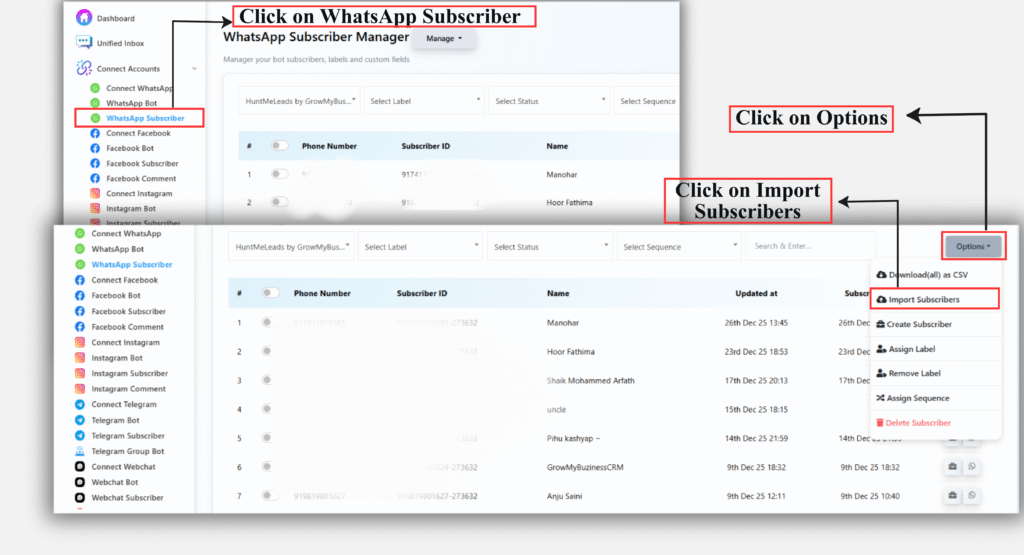
- Go to Subscriber Manager
- Click Options → Import Subscribers
- Upload your CSV file
- Map columns correctly:
- Name → Subscriber Name
- Phone Number → Subscriber Phone Number
- Custom columns → Matching Custom Fields
- Select a Label to assign
- Click Confirm
Import runs immediately.
What Happens After Import? #
- Duplicate phone numbers are automatically deduplicated
- Existing contacts are updated, not duplicated
- Invalid numbers are skipped
- Contacts are ready for:
- Broadcasts
- Sequences
- Live chat
- Automation
CSV import does not bypass WhatsApp opt-in rules. You are still responsible for consent.
Common Mistakes You Should Avoid #
- Importing before creating custom fields
- Using Excel UTF-16 CSV
- Phone numbers with symbols
- Header names that don’t match fields
- Forgetting to assign a label
Most “bugs” here are user errors. Be precise.
Key Takeaway #
CSV import in LandinChat is:
- Fast
- Reliable
- Scalable
But only if:
- Your file is clean
- Encoding is correct
- Fields are pre-configured
Do it right once. Don’t debug it later.
Frequently Asked Questions (FAQs) #
1. What is the maximum number of subscribers I can import? #
There’s no hard cap, but very large files should be split for safety.
2. Can I re-import the same CSV? #
Yes. Existing contacts will update based on phone number.
3. What happens to duplicate phone numbers? #
Duplicates are merged automatically.
4. Can I import without labels? #
You shouldn’t. Labels are strongly recommended for tracking and segmentation.
5. Can I import custom fields via CSV? #
Yes, but the custom field must already exist in LandinChat.
6. Does CSV import send messages automatically? #
No. Importing contacts does not trigger messages.
7. Will CSV import bypass WhatsApp consent rules? #
No. You must have user opt-in before messaging.
8. Why are some contacts skipped? #
Usually due to invalid phone formatting or encoding issues.
9. Should I use CSV or Google Sheets? #
- One-time bulk → CSV
- Ongoing updates → Google Sheets
10. What’s the safest way to test? #
Import 5–10 contacts first. Then import the full list.