
Manual subscriber import in LandinChat is ideal when you want to add a small number of contacts quickly without preparing a CSV file. This method is best suited for direct leads, test contacts, or one-off additions.
However, if you skip basic setup (custom fields and labels), your data will turn messy fast.
When Should You Use Manual Import? #
Use manual import when:
- You’re adding a few contacts only
- You received leads via calls, DMs, or offline sources
- You want to test bots or campaigns
- CSV import feels like overkill
If you’re importing more than 10–15 contacts, use CSV instead. Manual entry doesn’t scale.
Prerequisites (Don’t Skip This) #
Before adding subscribers manually, make sure you have:
- An active LandinChat account
- Subscriber contact details (WhatsApp number is mandatory)
- Custom Fields created (for name, email, company, etc.)
- Labels set up (to segment subscribers properly)
If you don’t set up custom fields and labels first, you’ll regret it later.
Steps to Import Subscribers Manually in LandinChat #
Follow these steps exactly:
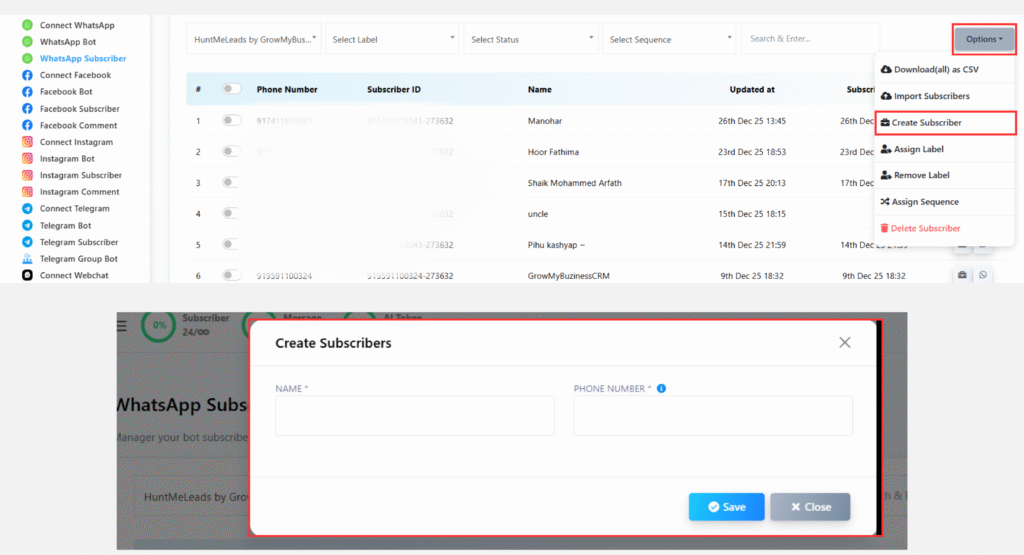
Step 1: Open Subscriber Manager #
- Log in to LandinChat Dashboard
- Go to Subscriber Manager
- Click Options
Step 2: Create a New Subscriber #
- Select Create Subscriber
- Enter the subscriber’s details:
- Phone number (with country code)
- Name
- Any custom field data (email, city, etc.)
- Assign labels if required
Step 3: Save #
- Click Save
That’s it. The subscriber is now added and ready for automation, broadcasts, or live chat.
Important Notes (Read This) #
- Manual import does not bypass opt-in rules
- You should only add contacts who have given consent
- Incorrect phone number formats will cause message failures
- Labels added here affect broadcasts and sequences
Manual import is fast—but mistakes here propagate everywhere.
Key Takeaway #
Manual subscriber import in LandinChat is:
- Fast
- Simple
- Useful for small batches
But it’s not a replacement for CSV imports or automated syncing.
Use the right tool for the right volume.
Frequently Asked Questions (FAQs) #
1. How many subscribers should I add manually? #
Ideally under 10–15. Anything more—use CSV import.
2. Can I assign labels during manual import? #
Yes. You should assign labels while creating the subscriber.
3. Are custom fields mandatory? #
Not mandatory, but highly recommended for clean data and automation.
4. Can I edit subscriber details later? #
Yes. Subscriber details can be updated anytime.
5. Does manual import trigger any messages automatically? #
No, unless you’ve set automation rules or sequences.
6. Can I manually import without WhatsApp consent? #
No. You must have user opt-in to stay compliant.
7. Is manual import available for WhatsApp API only? #
Yes. This is for WhatsApp Business API subscribers.
8. What’s the most common mistake? #
Adding numbers without country code or proper labels.
9. Can I delete a manually added subscriber? #
Yes. You can remove or unsubscribe them anytime.
10. When should I avoid manual import? #
When importing:
- Large lists
- Daily leads
- Campaign data
Use CSV or integrations instead.