
(For LandinChat – WhatsApp Business API)
Your WhatsApp Business profile is what customers see when they interact with your API number.
Keeping it updated improves trust, brand recognition, and response rates.
This guide explains how to update your profile picture, business description, website, and other details for your WhatsApp Cloud API number used with WatsAppKaro.
Before You Start #
Your phone number must already be connected to LandinChat
You must have access to WhatsApp Manager
Changes are made in Meta’s dashboard, not inside WatsAppKaro
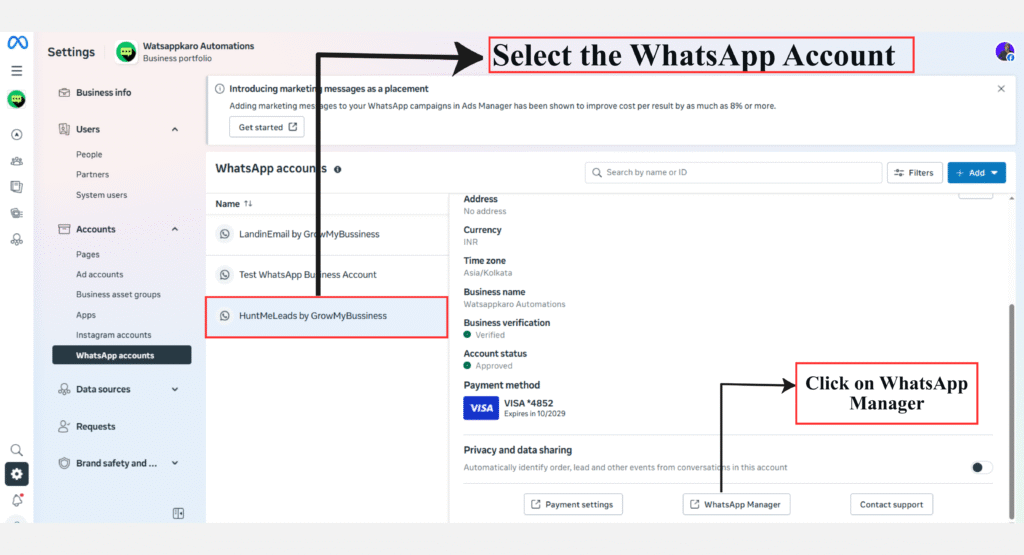
Step 1: Log in to WhatsApp Manager #
- Log in to Meta Business Manager
- Open WhatsApp Manager
Step 2: Navigate to Phone Numbers #
- In WhatsApp Manager, go to:
- Account tools → Phone numbers
- You’ll see a list of WhatsApp numbers connected to your business
Step 3: Select the Phone Number #
- Find the phone number you want to update
2. Click Settings next to that number
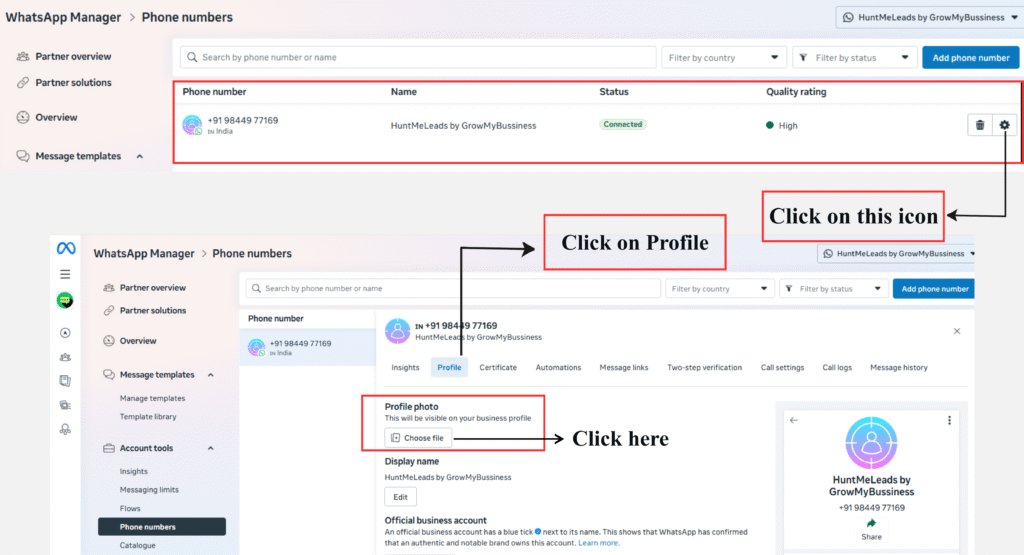
Step 4: Open Profile Settings #
- Inside Settings, click Profile
- You’ll now see options to update:
- Display picture
- Business description
- Website
- Address
- Email and other business details
Step 5: Change Your Display Picture #
- Click Change profile picture
- Upload a new image that represents your business
- Make sure the image follows WhatsApp’s guidelines:
- Clear logo or brand image
- No misleading or promotional text
- Click Save to apply changes
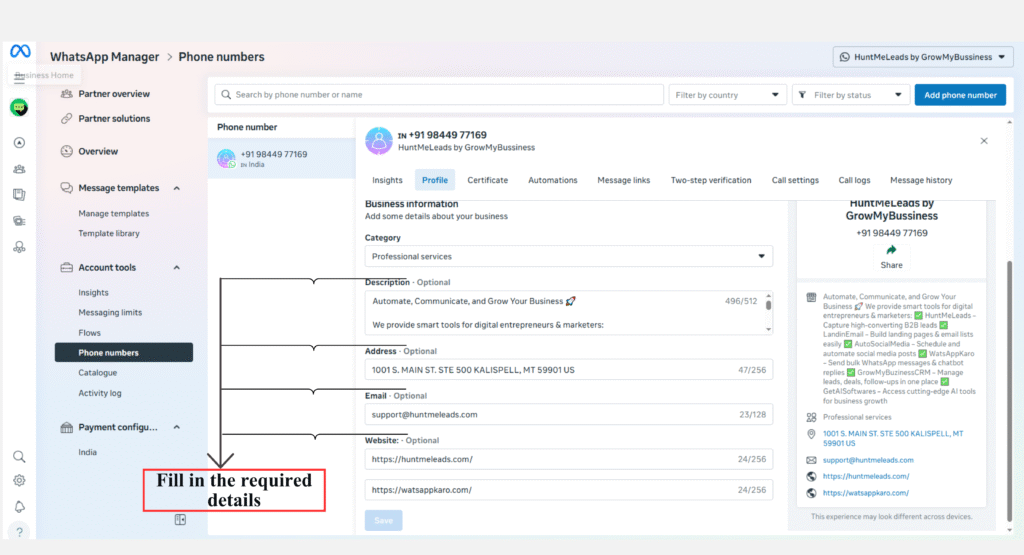
Step 6: Update Business Description #
- Edit the Business Description field
- Keep it short, clear, and relevant to what you offer
- Avoid promotional claims or spammy language
- Click Save
Step 7: Add or Update Website #
- Scroll to the Website field
- Enter or update your business website URL
- Ensure the link is valid and accessible
- Click Save
Step 8: Edit Additional Business Information
You can also update:
- Business address
- Business email
- Other available profile fields
Steps:
- Edit the required fields
- Verify all details are accurate
- Click Save to apply the changes
After Updating Your Profile #
- Changes usually reflect within a few minutes
- In some cases, updates may take longer due to Meta review
- Your messaging activity on WatsAppKaro will not be interrupted
- Keeping your profile updated helps customers recognize and trust your business.
Frequently Asked Questions (FAQs) #
1. Can I update my WhatsApp profile from WatsAppKaro dashboard? #
No.
All profile updates must be done in WhatsApp Manager inside Meta Business Manager.
2. How long do profile changes take to reflect? #
Most changes appear within minutes.
In rare cases, Meta may take longer to review updates.
3. Are profile changes reviewed by Meta? #
Some updates, especially profile images and descriptions, may be reviewed to ensure policy compliance.
4. What type of display picture should I use? #
Use:
- Your official business logo, or
- A clear brand image
Avoid:
- Promotional posters
- Discount text
- Low-quality images
5. Can I add any website URL? #
Yes, but it should:
- Belong to your business
- Be active and accessible
- Match your business identity
6. Will changing profile details affect messaging or templates? #
No.
Profile updates do not affect message templates or campaigns.
7. Can I change my business name here? #
No.
Business name and display name changes must be done separately and may require re-approval.
8. What happens if I add incorrect information? #
Incorrect or misleading details may cause:
- Profile rejection
- Account limitations
Always ensure information is accurate.
9. Do profile updates affect verification status? #
No.
Verification status remains unchanged unless business identity is altered significantly.
10. What should I do if updates are not saving? #
Refresh the page and try again.
If the issue persists, contact LandinChat Support.