
(LandinChat – WhatsApp Business API)
The WhatsApp Business API is a paid API.
Meta (WhatsApp) charges a per-conversation fee for messages sent and received through the API.
To avoid message failures or account restrictions, you must add a payment method in your Meta Business Manager.
This guide explains how to do that correctly.
Why Adding a Payment Method Is Mandatory #
- WhatsApp API conversations are billed by Meta
- Billing does not go through WatsAppKaro
- Without a payment method:
- Messages may fail
- Your WhatsApp account can be paused or restricted
Adding billing ensures uninterrupted WhatsApp API access.
Step-by-Step: Add Payment Method for WhatsApp API #
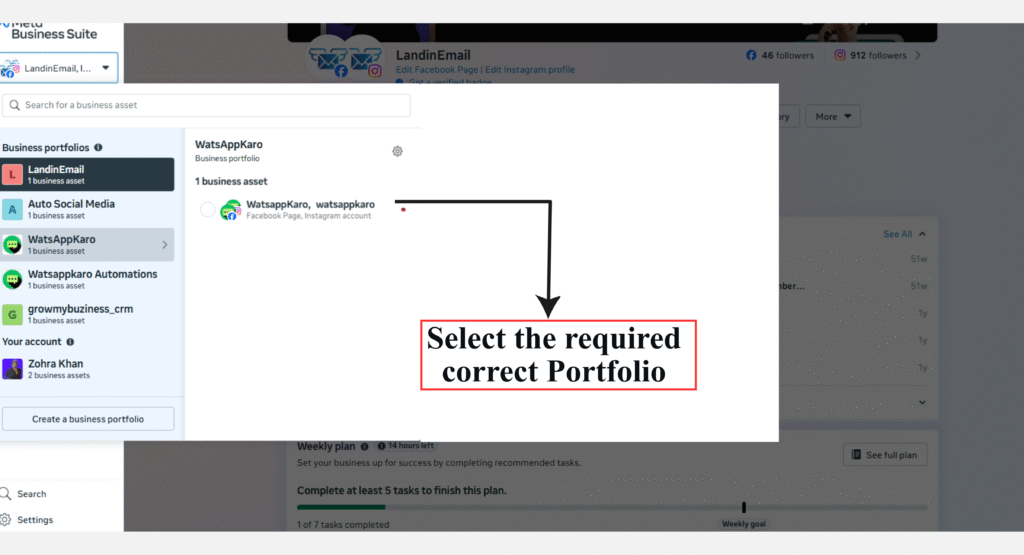
Step 1: Open Meta Business Settings #
- Log in to Meta Business Manager
- Open Business Settings
- If prompted, select the business account you use for WhatsApp Cloud API
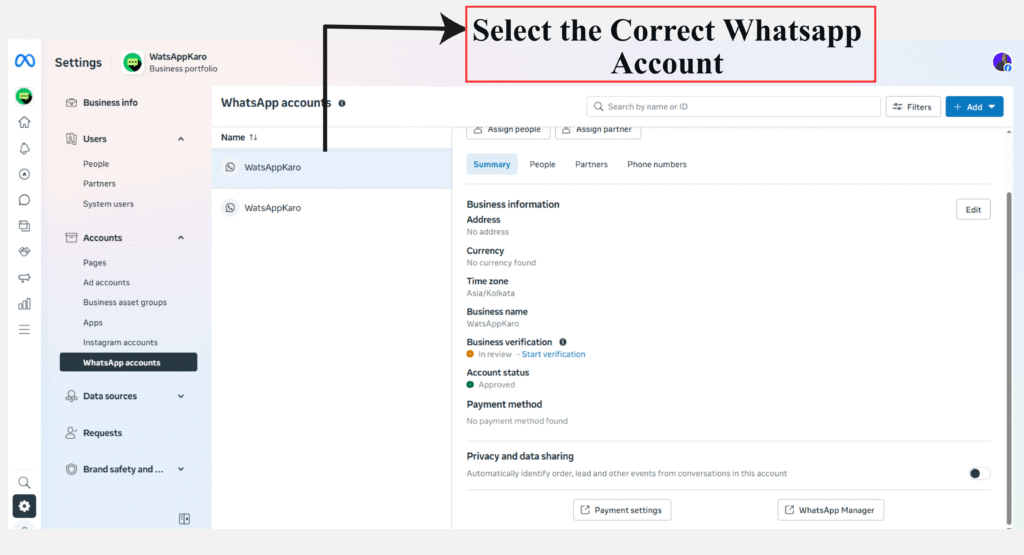
Step 2: Navigate to WhatsApp Accounts #
- From the left sidebar, go to:
Accounts → WhatsApp Accounts - Select the WhatsApp account (WABA) connected to WatsAppKaro
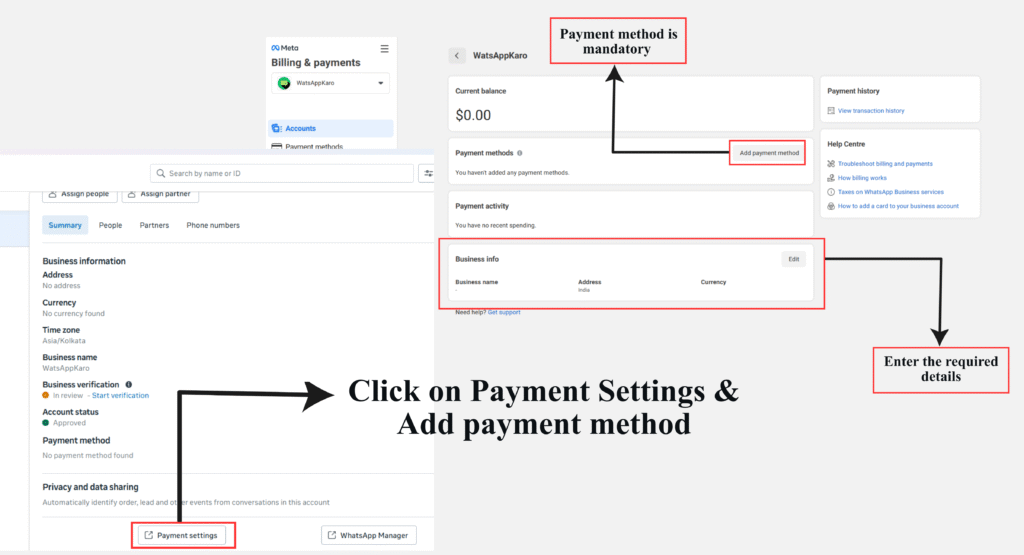
Step 3: Open Payment Settings
- Click on the Settings tab of the selected WhatsApp account
- Click Payment Settings
This will redirect you to the billing section.
Step 4: Add a Payment Method
- Click Add payment method
- Select:
- Country
- Currency
- Payment method
- Click Next
- Enter your card or payment details
- Click Save
Once saved, you’ll see a confirmation that the payment method has been added successfully.
Add Missing Business Information (If Prompted) #
After adding a payment method, Meta may show a banner asking you to complete missing business details.
Step 1: Open the Alert #
- Click the “Add business information” banner at the top of the page
Step 2: Enter Required Details
Provide accurate information such as:
- Legal Business Name
- Business Address
- Phone Number
- Website
Step 3: Save Information #
- Click Save to complete the setup
Completing this step reduces the risk of billing issues or account limitations.
After Completing Billing Setup #
Once your payment method and business details are added:
- WhatsApp API conversation charges will be billed by Meta
- Messaging via LandinChat will work without interruption
- You can safely start sending templates and campaigns
Frequently Asked Questions (FAQs) #
1. Who charges for WhatsApp API usage? #
Meta (WhatsApp) charges for WhatsApp API conversations.
WatsAppKaro does not charge per message or add markup.
2. Is adding a payment method mandatory? #
Yes.
Without a payment method, WhatsApp API messaging may stop or fail.
3. Where do I add the payment method? #
In Meta Business Manager → WhatsApp Account → Payment Settings.
Not inside the WatsAppKaro dashboard.
4. What payment methods are supported? #
Meta usually supports:
- Credit cards
- Debit cards
Availability depends on your country and currency.
5. Can I change or remove my payment method later? #
Yes.
You can update or replace your payment method anytime from Payment Settings in Meta Business Manager.
6. Will LandinChat charge me for WhatsApp messages? #
No.
- WhatsApp conversation charges → billed by Meta
- LandinChat charges only its platform subscription
- 0% markup on WhatsApp API costs
7. What happens if my payment fails? #
If payments fail:
- Message delivery may stop
- Your WhatsApp account may be temporarily restricted
Always ensure your payment method is valid and funded.
8. Do I need to add business information after adding payment? #
Yes, if Meta prompts you.
Missing or incorrect business details can cause billing or account issues later.
9. Can I start messaging before adding a payment method? #
No.
A valid payment method is required before sending WhatsApp API messages.
10. What should I do if I face issues while adding billing? #
Stop and contact LandinChat Support before retrying.
Billing-related mistakes are harder to fix later.