Step 1: Log in to LandinChat
Log in to your LandinChat account
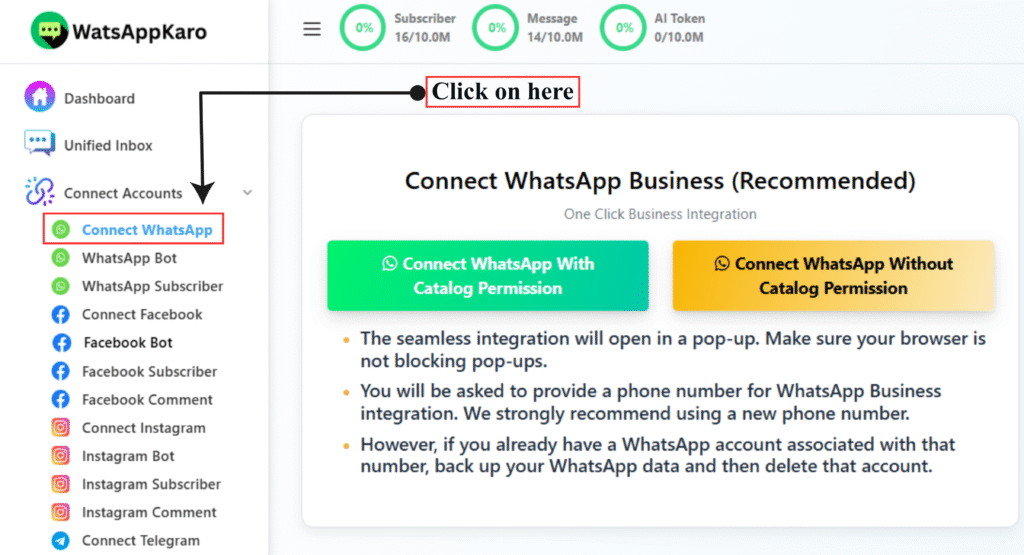
Step 2: Go to “Connect Account”
From the left menu, click Connect Account
Or use the direct connection link provided in your dashboard
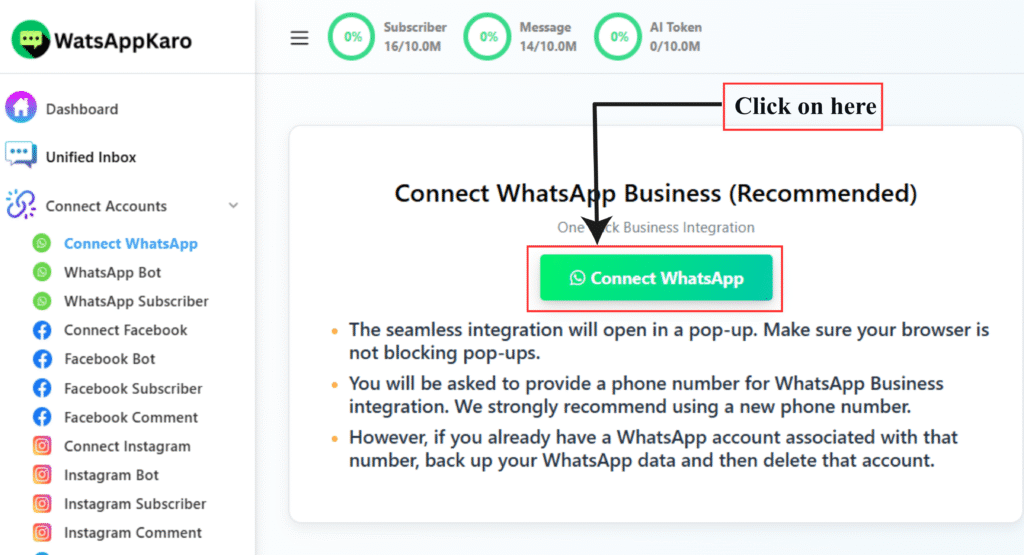
Step 3: Click “Connect WhatsApp”
Click the Connect WhatsApp button
A popup will open to start WhatsApp’s Embedded Signup
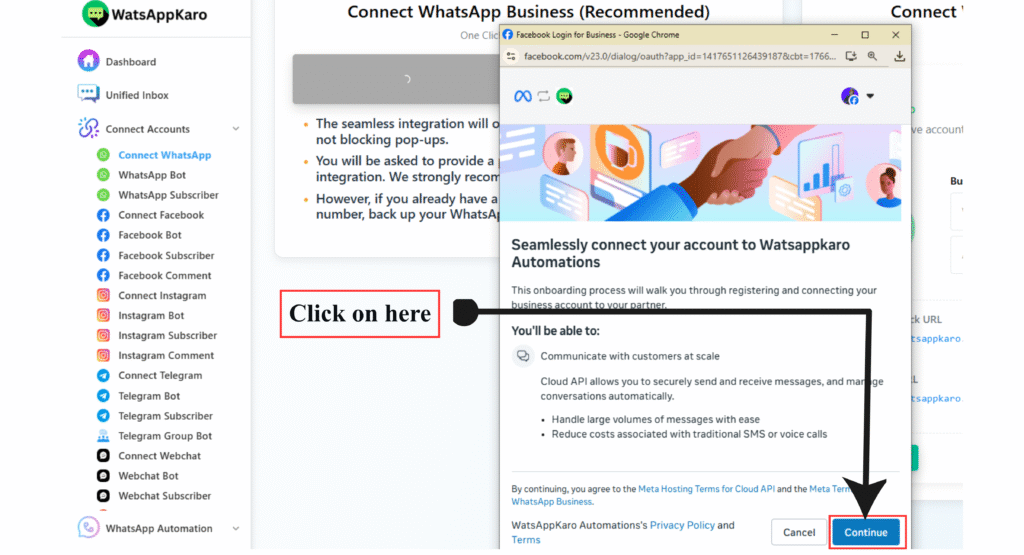
Step 4: Log in with Facebook
- Log in using the Facebook account linked to your Meta Business Manager
- If already logged in, Facebook will continue automatically
⚠️ You must be an Admin of the Meta Business Manager to proceed.
Step 5: Business Selection (Meta Business Manager)
- If you already have a Business Manager, it will be shown
- If you don’t, Meta may prompt you to create one
- If you are not an admin or have reached the business limit, you cannot continue
Fix this before proceeding.
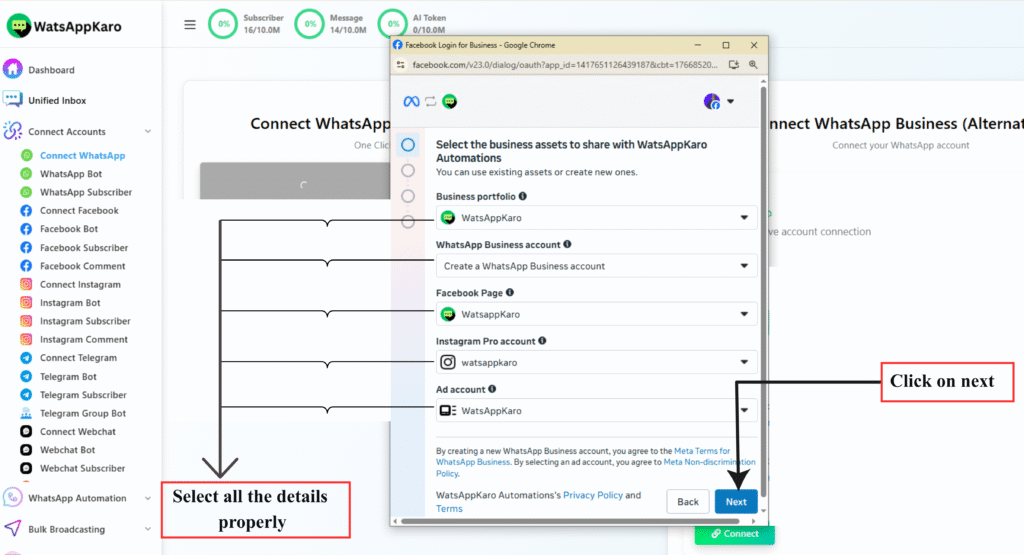
Step 6: Select or Create WhatsApp Business Account (WABA)
You’ll see three options:
Option 1: Create New WABA + Profile (Recommended)
Best for new setups
Enter required business details
Website field is optional
Option 2: Use Existing WABA + Create New Profile
- Use if you already have a WABA but need a new number
Option 3: Use Existing WABA + Profile
- Details will be shown but not editable
- Changes must be done later in WhatsApp Manager
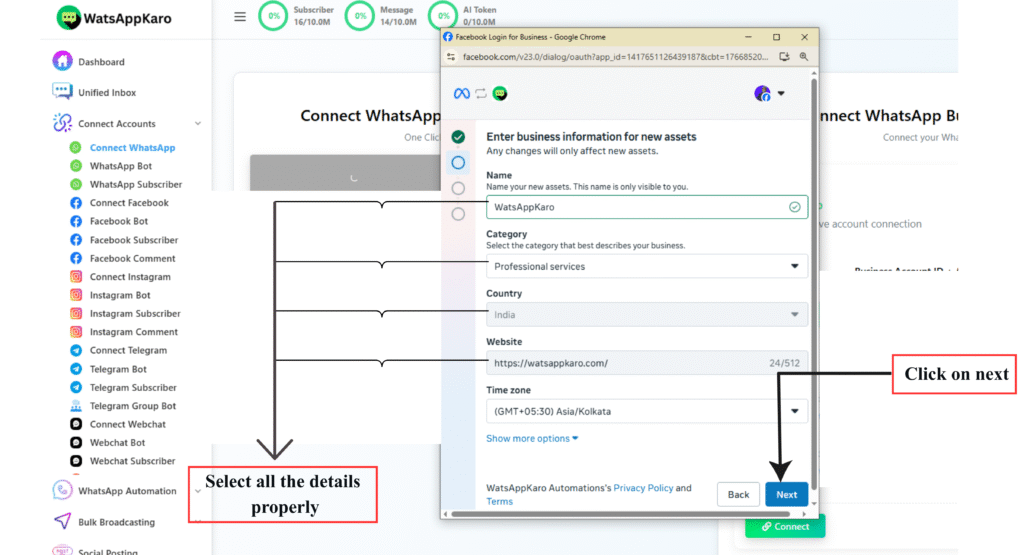
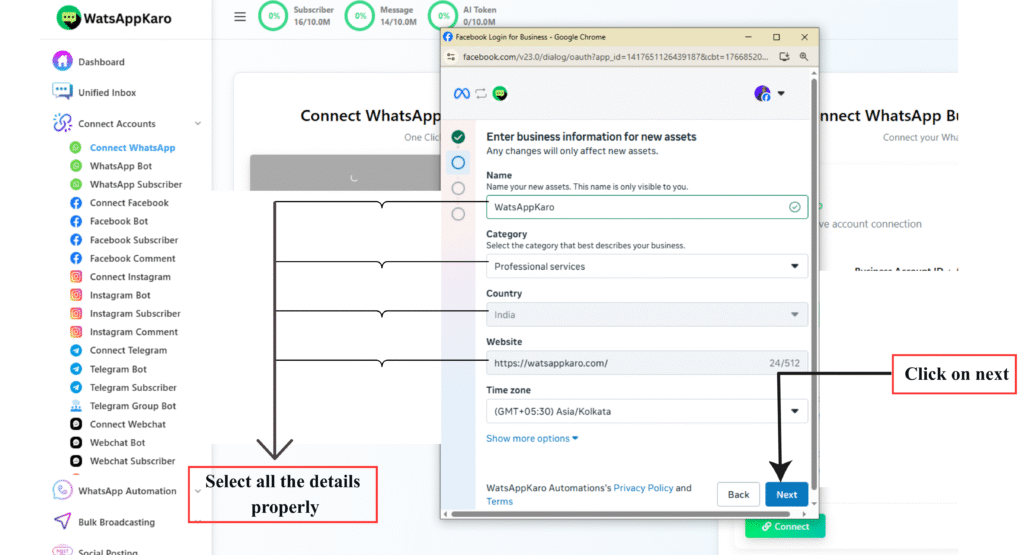
Step 7: Create WhatsApp Business Profile (IMPORTANT)
Business Account Name
- Must be your legal company name
- Used internally by Meta
Display Name (Most Common Rejection Reason)
This is what users see on WhatsApp.
- Must clearly identify your business
- Must include your company name
Rules you MUST follow:
Correct Format:
“Brand Name by Company Name”
Example:
If company = XYZ Pvt Ltd
Brand = SuperTech
✅ SuperTech by XYZ Pvt Ltd
❌ SuperTech
❌ SuperTech Official
❌ SuperTech Services
Ignoring this causes instant rejection.
Category
- Select the category that best describes your business
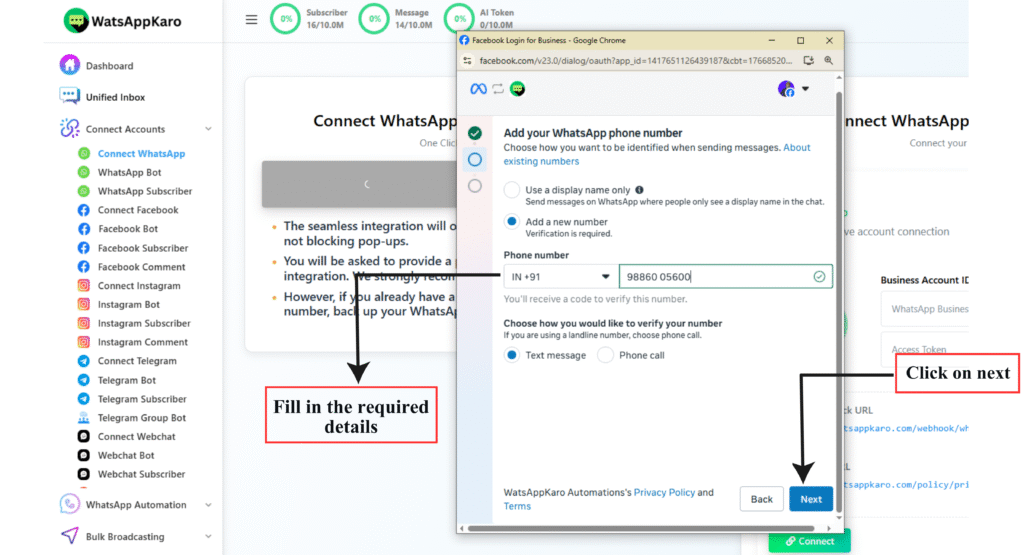
Step 8: Verify Your Phone Number
- Enter the phone number you want to connect
- Receive OTP via SMS or Call
- Enter the code to verify
The number must be unused on WhatsApp apps.
Step 9: Review Permissions
WhatsApp will show required permissions
These are mandatory
Click Continue to proceed
After Connection: Mandatory Next Steps
Your number is connected, but you’re NOT done yet.
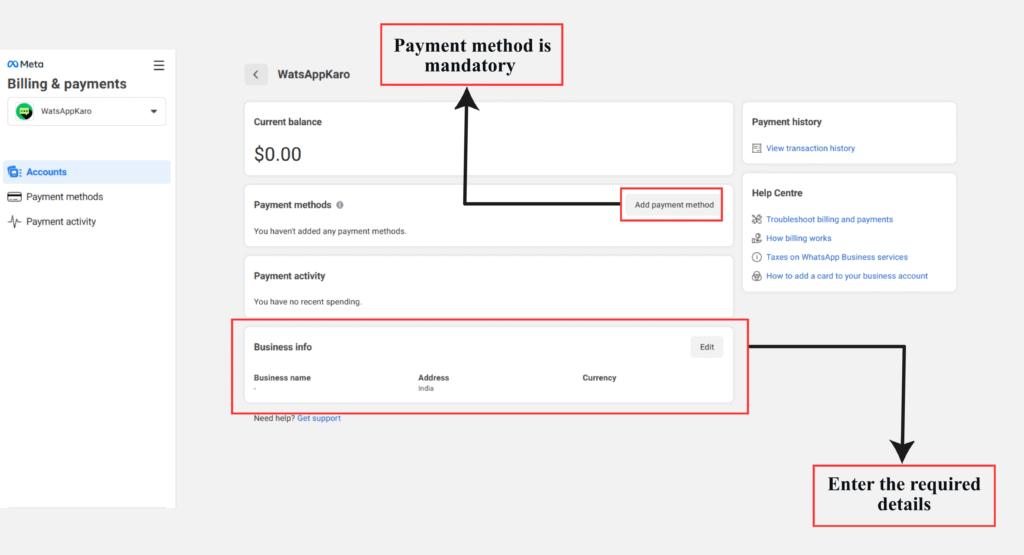
1️⃣ Add Payment Method
Required for WhatsApp API conversation charges.
See: How to Add Payment Method for WhatsApp API Billing
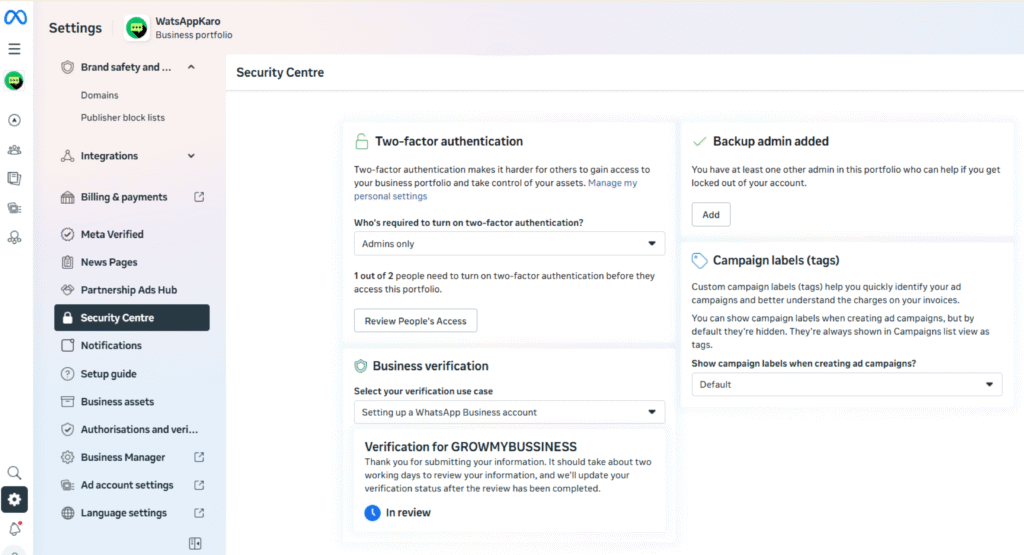
2️⃣ Verify Meta Business Manager
Required to:
- Increase messaging limits
- Avoid account restrictions
- Build trust with Meta
See: How to Verify Your Meta Business Manager
Without these, your account may be limited or paused.
Final Reality Check (don’t ignore)
- Most failures happen due to:
- Wrong display name
- Using an active WhatsApp number
- Not being Business Manager admin
- WhatsApp API setup is strict – not forgiving
If anything here feels confusing, ask before clicking Continue.
Need Help ?
Contact LandinChat Support before proceeding.
Fixing mistakes after setup is harder than doing it right once.